Example: Viewing SFC Data and Performing Activities in Shop Workbench
The following procedure includes steps that the operator might perform working in the Default Shop Workbench POD
.
Prerequisites
The
Shop Workbench
(SHOP_WB_PLUGIN
) activity rules have the default settings.The SFC number
ASSEMBLY123
has the statusNew
and has attached buyoffs, components, data collections, tools, and work instructions.The user has permission to perform the
Start
,Buyoff
,Complete
,Assemble
,DC Collect
, andLog Tool
activities.The user belongs to the user group that is assigned to the buyoffs attached to the SFC number
ASSEMBLY123
.
Procedure
Open the predefined
POD — Shop Workbench
.Enter the work center and choose
Retrieve
.Select the SFC number
ASSEMBLY123
from thePOD Work List
.Choose
Expand All
to view all the tree nodes.View the
SFC Current Information
and other data presented in the tree like structure.Select the first operation whose status is
New
.Choose
Start
.The status of the operation changes to
Active
.Select an entry under the
Components
tree folder.Choose
Assemble
.The system displays the
Assemble Components
data entry plug-in in a popover panel with the selected component’s information.Enter applicable assembly data and change the quantity on the
Assemble Components
pane.Choose
Add
.The system displays a message indicating that the component has been added, displays the next component (if one exists) and updates the component quantity.
Repeat steps 8–11 to process all the components.
When all the components are assembled, the component icon next to the operation becomes grayed out.
Select an entry under the
Data Collections
tree folder.Choose
DC Collect
.The system displays the
Data Collection
data entry plug-in in a popover panel with the selected DC group’s information.Enter applicable parameter data on the
Data Collection Entry
pane.Save your entries.
Repeat steps 13–16 to process all the data collection groups.
When all the data is collected, the data collection icon next to operation becomes grayed out.
Select an entry under the
Tools
tree folder.Choose
Log Tool
.The system displays the
Log Tool Entry
data entry plug-in in a popover panel.Select the appropriate tool from the
Tool Number
browse list and chooseOK
.Enter the
Qty Logged
number and anyComments
.Save your entries.
Repeat steps 18–23 to process all the tools.
Select the first entry under the
Work Instructions
tree folder.Choose the
Work Instruction
button.The system displays the
Work Instruction Viewer
in a popover panel.Read the displayed work instruction.
Repeat steps 24–26 to view all the work instructions, then choose
Close
.Select the first operation and choose
Complete
.The status of the operation changes to
Completed
. The entries under theBuyoffs
tree folders have the statusClosed
and the buyoff icon next to the operation folder is grayed out.
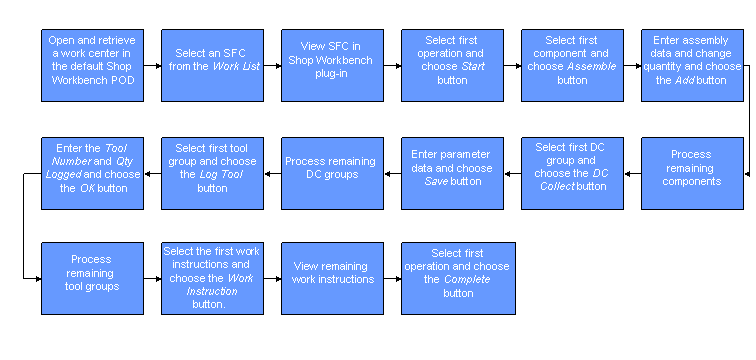
Process Flow
The following figure provides a high level flow of this example.