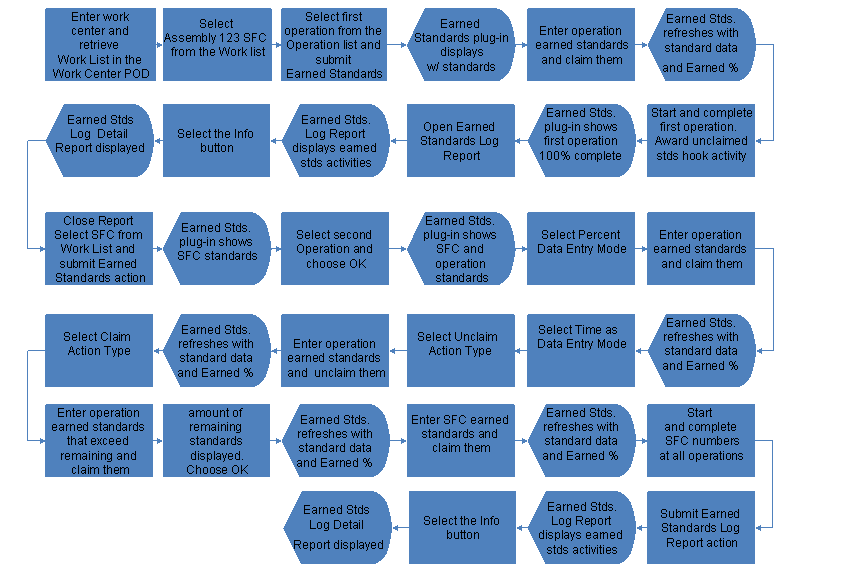
Example: How to Work with Earned Standards
An operator needs to claims SFC number and operation standards in the Earned Standards
plug-in, and view earned standards transactions from the Earned Standards Log Report
.
Prerequisites
You have set the
Earned Standards
activity rules follows:The
AUTHORIZED_PERFORM_UNCLAIM
activity rule is set toTRUE
.The
AUTO_AWARD_SETUP
activity rule is set toYES
.
For more information, see Earned Standards Plug-In.
You have set the
CHECK_ALL_STDS_LAST_OPER
activity rule for theAward Unclaimed Standards
hook point activity toTRUE
(see Award Unclaimed Standards).You have defined the
Earned Standards
activity in the defaultWork Center
POD. You have defined a button to theEARNED_STANDARDS
activity and defined theEARNED_STANDARDS
plug-in as an optional plug-in forPanel C
, a fixed panel (see Adding POD Button Activities to Your POD).You have defined the
Award Unclaimed Standards
hook point activity to run at thePOST_COMPLETE
hook point for theDEFAULT
resource.Operations that are assigned to routing for the
ASSEMBLY123
material have theDEFAULT
resource assigned to them.You have defined material and operations standards for the
ASSEMBLY123
material inScheduling Standards Maintenance
as follows:Material standards:
Production Rate Qty
:1,Time
: 45 minutes,Setup Time
: 1 hourFirst operation standards:
Production Rate Qty
: 1,Time
: 1 hour,Setup Time
: 2 hoursSecond operation standards:
Production Rate Qty
: 2,Time
: 2 hours,Setup Time
: 30 minutesFor more information, see Scheduling Standards Maintenance.
Create a shop order for the
ASSEMBLY123
material for a quantity of 2
Procedure
In the default
Work Center
POD, retrieve your work center.In the
POD Work List
, enter ASSEMBLY123 as your SFC number.Choose the first operation from the
POD Operation List
and choose theEarned Standards
button.For the first operation, enter 0.2 in the
Claim Setup
field and 0.4 in theClaim Run
field in theClaim
fields for operation standards, and choose theClaim
button. The plug-in refreshes showingEarned %
of 100% forSetup
(due to activity ruleAUTO_AWARD_SETUP = YES
) and 20% forRun
for a total of 60% earned standards.Close the
Earned Standards
plug-in; start and complete your SFC number.With first operation still selected, choose the
Earned Standards
button again and view the operation standards for the first operation.Note that
Earned %
value is100%
due toAWARD_UNCLAIMED_STDS
activity hook point setup.Open the
Earned Standards Log Report
. View the report and choose theInfo
button for each log record.Note the differences between the
Activity Info
,Claim Info
, andAward Info
for each log record.In the
Work Center
POD, enter the SFC number but leave theOperation
field blank, and choose theEarned Standards
button. Note that only the SFC standards are now displayed.Enter the second operation in the
Operation
field and choose theOK
button. Note that both SFC and operation standards are displayed.Choose
Percent
as theData Entry Mode
.For the second operation, enter 25 in the
Claim
Setup
field for operation standards, and claim the standards. The plug-in refreshes showing theEarned %
value of 25%Setup
and theTotal
value of 5% .Choose
Time
as theData Entry Mode
andUnclaim
as theAction Type
.For the second operation, enter 3 in the
Unclaim Setup
field for operation standards, and unclaim the standards. The plug-in refreshes showing theEarned %
value of 15%Setup
andTotal
value of 3% .Change the
Action Type
toClaim
.For the second operation, enter 30 in the
Claim Setup
field for operation standards and claim the standards.A notification is displayed that the setup standards are exceeded. Choose the
OK
button to claim the total remaining standards. The plug-in refreshes showing theEarned %
value of 100%Setup
and theTotal
value of 20% .For the SFC number, enter 15 in the
Claim Run
field for SFC standards and choose theClaim
button. The plug-in refreshes showing theEarned %
value of 100%Setup
, theRun
value of 16.667% and theTotal
value of 50%. Close theEarned Standards
plug-in.Start and complete SFC numbers with the
Done
status at all operations.Open the
Earned Standards Log Report
, enter your SFC number and search for the data.View the report and choose the
Info
button for each log record.Note the differences between the
Activity Info
,Claim Info
, andAward Info
for each log record.
The following figure provides a high level flow of user actions when claiming, unclaiming and awarding earned standards, and viewing Earned Standards Log Report
: