 Installing the SAP ODA Connector
Procedure
Double-click the
Setup.exe
file.
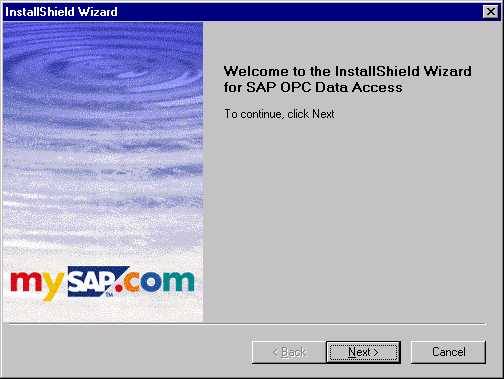
The welcome screen of the InstallShield Wizard appears.
 ( )
( )
Choose
Next
.
The
Choose Destination Location
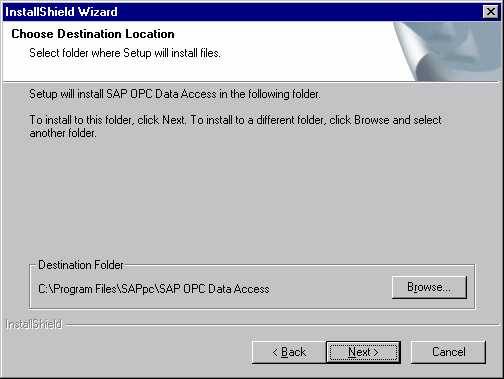
dialog box appears.
 ( )
( )
The InstallShield Wizard proposes a folder for installing SAP ODA.
If you want to accept the proposed folder, choose Next .
If you want to select a different folder, choose Browse... Choose Next .
SAP ODA uses the SAPRFC.INI file to register at the SAP gateway with the required parameters.
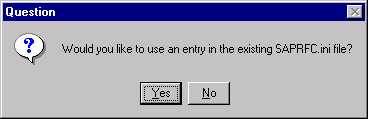
If the SAPRFC.INI file exists, the InstallShield Wizard asks you whether you want to use an entry in the existing SAPRFC.INI file.
Using an entry in the existing SAPRFC.INI file
To use an existing entry, choose Yes . The dialog box with existing entries in the SAPRFC.INI file appears.
Select a destination in the dialog box and choose Next .

Creating a new entry in the SAPRFC.INI file
To create a new entry, choose No in the Choose Destination Location dialog box.
Enter the following parameters:
Destination |
Any name for the configuration you are about to create |
Configuration Parameters |
|
SAP Gateway Host Name |
Host name or IP address of the SAP gateway |
SAP Gateway Service Name |
Program name of the SAP gateway |
Program ID |
Any program ID under which the SAP ODA is registered at the SAP gateway.
The program ID must be entered in the RFC destination for SAP ODA that you have defined in Customizing for the SAP system under Process Management → SAP ODA → Define RFC Destination for SAP ODA |
Choose Next .

If the SAPRFC.INI file does not exist, the InstallShield Wizard creates it.
Enter the required parameters in the dialog box. Proceed as described in Creating a new entry in the SAPRFC.INI file to do so.
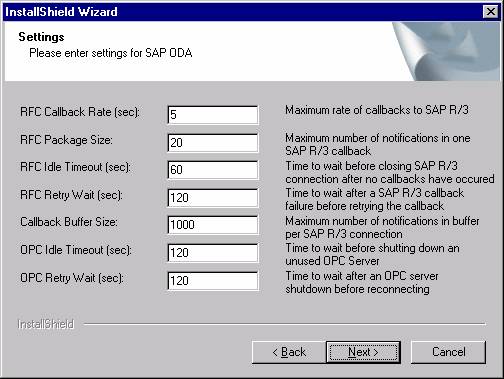
The Settings dialog box appears.
 ( )
( )
You can make the following settings:
RFC Callback Rate You specify in which intervals (in seconds) the SAP ODA Connector is to check for events. If events or value changes exist, the connector reports them to the SAP system. However, the SAP system is only called if an event or value change really occurred.
RFC Package Size You specify how many events and value changes are to be transferred to the SAP system per RFC call. You can use this parameter to optimize the memory consumption on the application server. Enter a value that is as big as possible and reduce it if memory problems occur.
RFC Idle Timeout You specify when an RFC connection is to be closed if no events or value changes occur. The SAP ODA Connector logs off from the SAP system after the time specified (in seconds).
RFC Retry Wait You specify in which intervals (in seconds) the SAP ODA Connector tries to log on to the SAP system when the RFC connection terminated (for example, due to network problems).
Callback Buffer Size You specify the maximum number of events and value changes that the SAP ODA Connector is to buffer. You can use this parameter to limit how much memory the SAP ODA Connector consumes on the local machine. Note that all subsequent events are lost once the maximum buffer size is reached. Therefore, enter a value that is as big as possible.
OPC Idle Timeout You specify the time (in seconds) to wait until an unused OPC server is shut down. An OPC server is unused if no read or write operations were carried out in this time, and no event and value change subscriptions exist.
OPC Retry Wait You specify in which intervals the SAP ODA Connector tries to restart the server after it has been shut down.
The InstallShield Wizard Complete dialog box appears.
Choose Finish .

If all your settings are correct, the SAPRFC.INI file is installed on your PC along with the parameters you have specified.
Restart your PC if the InstallShield Wizard tells you to do so.

In the Windows system, SAP ODA is registered as a service that is automatically started when you boot your computer.
If the system is unable to start the service, check the Event Viewer Log for information about the error.
To start the service manually, proceed as follows:
In the Windows menu bar, choose Start → Settings → Control Panel
In the Control Panel dialog box, double-click Services .
Select SAP OPC Data Access Service
Choose Start.