 Hierarchy Assignments in Single-Object Processing
In Master Data Governance for Financials and in Master Data Governance for Custom Objects, you can create or remove the assignments of just one business object to one or more hierarchies in Single-Object Processing
(USMD_OVP_GEN
). For example, while you create or edit an airline in single-object processing, you can assign it to one or more airline alliances in a hierarchy.
Process
Requestor
Create or edit a business object from the search.
Assign the business object to a hierarchy. In the initial screen, you can type either the
Parent Node
by itself or theParent Node
and thePrevious Node
. Alternatively, you can search for the location in the hierarchy into which you want to insert the node, by clicking theNew
pushbutton, which opens up a new dialog box. To search for a point of insertion, proceed as follows:Search for attributes either of the desired parent node or of a desired adjacent node. .
Scroll or choose the
Next Match
pushbutton until you have found the part of the hierarchy into which you want to insert the node. Select a node and then choose either theInsert as Subnode
pushbutton (to assign the node as the first subnode of a selected parent node) or the Insert as Next Node pushbutton (to assign the node immediately after the selected node).
Save changes. The status of the change request is now
Changes to be Executed
. After making the assignment, related nodes are interlocked. For more information, see Define Scope for Changes.
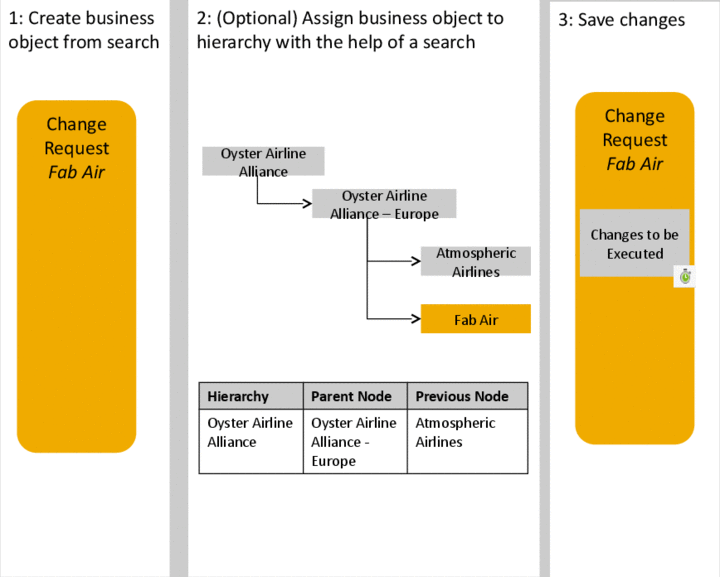
Requestor Step
Processor
Edit and enrich the business object from the incoming change request.
Proceed as follows
In the
Hierarchy Assignment
block, view existing hierarchy assignments.If necessary, create an additional hierarchy assignment. For instructions, see the description of the process for the Requestor in this document.
Submit changes for approval. The status of the change request is now
Final Check to be Performed
.

Processor Step
Approver
Edit and review the business object from the incoming change request.
Proceed as follows
View existing hierarchy assignments.
Display these assignments in the context of the hierarchy. Click the hierarchy icon to display the assignment in context.
Approve or reject the changes. The status of the change request is now either
Final Check Approved.
orFinal Check Rejected

Approver Step