
 Allocation: Scheduling in Allocation
Tables
Allocation: Scheduling in Allocation
Tables

Use
Scheduling involves determining the date by which a follow-on document has to be generated to ensure that the goods movement is made on time.
Depending on the Customizing settings for the item category, dates in the following document types are scheduled:
● Purchase orders placed with external vendors
● Warehouse orders
● Deliveries
● Sales orders
Prerequisites
An allocation table item is scheduled automatically by the system if you configured scheduling for the relevant item category in Customizing for Allocations.
Features
For every follow-on document type, a generation date is managed in the allocation table both at site delivery phase level and distribution center delivery phase level.

The generation date is displayed in allocation table maintenance for purchase orders to external vendors only (the Order date field). You can find this information in the site/distribution center details screen for every delivery phase.
The order date for a delivery phase at site level is only filled if the site is supplied directly from the vendor and not from the distribution center (third-party order).
When switched on in Customizing, the generation date for a follow-on document is determined per site as follows
Generation date = delivery date - goods receipt processing time from article master - planned delivery time from article master
Starting from the delivery date, the system schedules backwards. If the system discovers in the course of scheduling that the generation date should be before the current date, the system uses the current date.
If you enter the delivery date manually, the system issues a message indicating the earliest possible delivery date. The delivery date is determined by the forward scheduling function.
Seasonal Scheduling
If you have set the seasonal scheduling (options 5 – 8) for the relevant item category in Customizing, the system uses this method to determine the latest generation date.
It carries out a scheduling (seasonal scheduling), on the basis of a specified goods receipt date - and also on the basis of a specified order date if necessary - of the distribution center (DC) or of the recipient.
When the allocation table is saved, the created dateline is stored in the database.
The follow-on document generation of the allocation table then passes the dateline to the order (only seasonal procurement) – no rescheduling is necessary.
After the vendor order has been generated, it is only possible to modify the dateline by means of the order (seasonal procurement).
If the goods receipt date is modified, a new scheduling always takes place in the background. An existing dateline is also modified in the background if the vendor changes.
Transportation chain – vendor: The seasonal scheduling is based on the transportation chain that serves as the basis of the calculation and is linked to the vendor. The linking can take place on the level of the master data of the vendor or on the level of the purchasing info record. The seasonal scheduling can only therefore be carried out if the vendor is known.
If a delivery phase for which a dateline exists is deleted, the dateline is also deleted if there is no corresponding order.
Modifications to the Initial Scheduling of the Seasonal Procurement in the Allocation Table
It can happen that the initial scheduling could not create a valid dateline (order date/latest generation date is in the past). In this case, the scheduling can be modified. Depending on the setting in Customizing, this can take place in the background, or manually in the dialog.
You make the settings in Customizing of the General Logistics under Merchandise Distribution -> Stock Allocation -> Allocation Table ->Item Categories of Allocation Table.
Options 5 and 6
Customizing Settings |
Process Flow in System/User Activities |
|
IMG Option Field Scheduling |
IMG Option Field Control Scheduling |
|
5 or 6 goods receipt date and order date specified |
0 Reschedule |
Rescheduling with the current date as the order date (forward scheduling, order date and goods receipt date are updated). |
1 Apply Scheduling |
Rescheduling with the goods receipt date (backward scheduling). In this case, the order date (in the past) is updated. A manual adjustment is necessary. |
|

Options 7 and 8
Customizing Settings |
Process Flow in System/User Activities |
|
IMG Option Field Scheduling |
IMG Option Field Control Scheduling |
|
7 or 8 Goods receipt date specified |
|
1. Rescheduling with the current date as the order date and the specified goods receipt date. If it is possible to adjust the dateline in this way, the order date is taken over. |
2. If the attempt fails, a second attempt is made to reschedule. |
||
0 Reschedule |
The current date is used as the starting date for a forward scheduling. The earliest goods receipt date at the distribution center or plant is determined. Order date and goods receipt date are updated. |
|
1 Apply Scheduling |
Rescheduling with the goods receipt date (backward scheduling). The order date (in the past, as in the first call of the scheduling) is updated. A manual adjustment is necessary. |
|
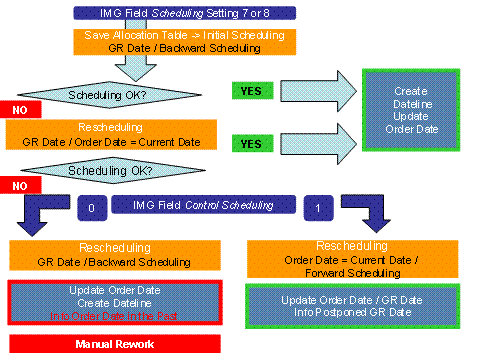
Generation of Allocation Table (Generation from Other Components):
A first attempt at rescheduling is made. If this is successful, the order date is taken over. If the attempt fails, a backward scheduling starting from the goods receipt date is taken over. A second attempt is only made in order to determine the earliest possible goods receipt date using the dateline.
The corresponding information is made available in the generation log.
In general, information such as postponed goods receipt date or order date in the past are made available in a log.
A dateline is also created if no suitable Incoterm is found. A corresponding message is issued in the log.
Activities
Manual Adjustment:
On the level of the DC or the delivery phase, you can change the goods receipt date and therefore trigger a rescheduling. To do this, choose Logistics -> Retailing ->Merchandise Logistics -> Merchandise Distribution ->Allocation Table -> Change.
A rescheduling is also triggered by the modification of the goods receipt date in the dialog as well as by the fast change.