Editing a Text HTML Object

Use
You can edit text HTMLs using a built-in WYSIWYG HTML text editor (like the WYSIWYG editing functionality offered by Microsoft FrontPage) as described in this section.

MDM automatically “tidies” every Text HTML block before you store it into the repository, guaranteeing that the HTML can be properly interpreted by a browser or DTP application.
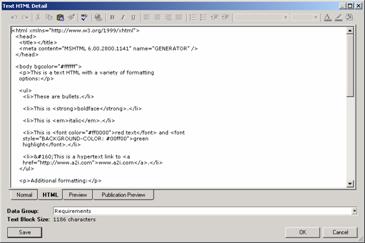
The Text HTML Detail dialog (figure below) has four tabs:
● Normal. Displays and allows you to edit the formatted HTML.
● HTML. Displays and allows you to edit the raw HTML.
● Preview. Displays the Text HTML precisely as it will be rendered.
● Publication Preview. Displays the Text HTML as it will publish.
The Normal and Preview tabs display the Text HTML slightly differently (such as a different border for tables and slightly different paragraph wrapping); the Preview tab also includes the ability to test out links, which are disabled in the other tabs.
Numerous HTML tags are not supported for print publication using MDM Publisher. These tags are stripped out in the Publication Preview tab, which displays the HTML as it will display within the preview panes of MDM Publisher and in printed publications.
Procedure
To open the Text HTML Detail dialog:
Double-click on a Text HTML lookup field cell or right-click on the cell and choose Edit Detail from the context menu.
The table below describes the toolbar buttons in the HTML Text Detail dialog (most of which are also available as commands from the context menu).
Button (Keyboard Shortcut) |
Tooltip |
Description |
|
Undo |
Undoes the last action. |
|
Redo |
Redoes the previously undone action. |
|
Cut |
Cuts the selected text to the clipboard. |
|
Copy |
Copies the selected text to the clipboard. |
|
Paste |
Pastes the text from the clipboard. |
|
Format Painter |
Copies the format of the selected text. |
|
Check Spelling |
Performs a spell check (HTML tab only). |
|
Insert Hyperlink |
Inserts or modifies a hyperlink (URL). |
|
Bold |
Makes the selected text bold. |
|
Italic |
Makes the selected text italic. |
|
Underline |
Underlines the selected text. |
|
Align Left |
Left justifies the selected paragraphs. |
|
Center |
Centers the selected paragraphs. |
|
Align Right |
Right justifies the selected paragraphs. |
|
Justify |
Justifies the selected paragraphs. |
|
Numbering |
Numbers the selected paragraphs. |
|
Bullets |
Bulletizes the selected paragraphs. |
|
Decrease Indent |
Shifts the selected paragraphs left. |
|
Increase Indent |
Shifts the selected paragraphs right. |
|
Font Name |
Changes the font of the selected text. |
|
Font Size |
Changes the size of the selected text. |
|
Font Color |
Sets the font color of the selected text. |
|
Highlight |
Set the highlight color of the selected text. |
|
Background |
Sets the background color. |





The Format Painter toolbar button is a toggle. When you click on it, MDM copies the format of the text that is selected (or at the point of the cursor if there is no selection). When you then drag-select new text with the mouse, that format is applied to the newly selected text. The format consists of the font name, font size, font color, highlight color, and the state of the bold, italic, and underline.
Additional context menu commands not available on the toolbar include: Find (Ctrl+F); Open in Browser (Ctrl+N); and Print (Ctrl+P).
To edit an existing text HTML in the Data Manager:
...
1. In the Records pane, select the text HTML record you want to edit.
2. In the Record Detail tab, double-click on the Text HTML cell, or press Enter to open the Text HTML Detail dialog, shown in the figure below.
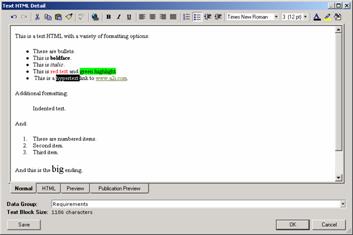
3. Make sure the Normal tab is the active tab, and click the Edit button (shown as Save in the figure above) to enable editing.
4. Edit the text HTML by typing text and using the toolbar controls to add rich formatting.
5. When you are done editing, click the Save button to save the text HTML record, and then click OK to close the dialog.
MDM saves the changes automatically if you click OK without first clicking the Save button.
If you want to abandon the changes you have made, click Cancel without clicking the Save button.
The HTML tab is shown in the figure below.