
 Importing and Exporting Relationship
Links
Importing and Exporting Relationship
Links

Use
MDM supports a variety of different mechanisms to import and export product relationship links, as summarized in the table below.
Mechanism |
Supported File Formats |
Import |
Export |
||||
Text |
Excel |
Access |
Sibling |
P/C |
Sibling |
P/C |
|
MDM Import Manager |
x |
x |
x |
|
x |
|
|
MDM Client |
|
|
|
|
|
|
|
File ® Export * |
x |
x |
x |
|
|
x |
x |
Relationships ® Import |
x |
|
|
x |
x |
|
|
Relationships ® Export |
x |
|
|
|
|
x |
x |
* Product-centric rather than relationship-centric.

You can use the MDM Import Manager to import parent/child relationships (but not sibling relationships) from a variety of non-text file formats. Use of the MDM Import Manager to import relationship links is described in the MDM Import Manager Reference Guide.
The File ® Import from Excel command in the MDM Client is not used for importing product relationships.
You can use the File
® Export
commands in the MDM Client to perform a product-centric
export that treats each relationship as a multi-valued field (for more
information, see
 Exporting Table
Records).
Exporting Table
Records).
Relationship-centric import and export of parent/child relationship links using the MDM Import Manager and the Relationships commands in the MDM Client read or create multiple parent/child pairs for each parent/child relationship, with one parent/child pair for each link placed on each line or row of the file, as shown in the figure below.
SKU <Kits> |
Part No <Parts> |
Quantity |
Required |
135-A |
1234 |
3 |
0 |
135-A |
5678 |
2 |
1 |
135-A |
9012 |
1 |
1 |
You can use the Relationships ® Import from File and Relationships ® Export to File commands to import and export product relationships within the MDM Client as described in this section.
The text file formats for importing and exporting product relationships using the Relationships commands are described in the table below.
Relationship |
Import/Export File Format |
Sibling |
· First line lists the main table display or unique field names in the order their values appear on subsequent lines, where each display field name is followed by the relationship name in angular brackets (<>). · First line also lists the Required and Quantity relationship qualifier names (if they are defined for the relationship and they were selected for export). · Each subsequent line defines an entire group of related sibling records, listing the field and qualifier values that identify each sibling record in the order defined on the first line, and repeating the sequence for each record in the group of related sibling records. |
Parent/Child |
· First line lists the display or unique field names of the parent table and the display or unique field names of the child table (both sides of the relationship even if it is a single-table relationship) in the order their values appear on subsequent lines, where each display field name is followed by the relationship name in angular brackets (<>). · First line also lists the Required and Quantity relationship qualifier names (if they are defined for the relationship and they were selected for export). · Each subsequent line defines a single pair of related parent/child records, listing the field and qualifier values that identify a single parent record and a single child record in the order defined on the first line. |
Qualifiers |
· The Required and Quantity fields are optional; if they appear, not all siblings or parent/child pairs need to have a value specified in the data file. · If the relationship link being imported does not exist in the repository and no value is specified for a qualifier, the default qualifier values are Required=No and Quantity=1 (MDM does not permit relationship qualifiers to have NULL values). · If the relationship link being imported already exists in the repository, the existing value for a qualifier is: (1) overwritten if a value is specified in the data file; and (2) unchanged if no value is specified for the qualifier in the data file. |
The Import from File and Export to File commands read and write plain ASCII text files.
The Field Delimiter character (for example, Tab) is used to delimit each display field and
qualifier value for each related record, where a lookup display field that
itself consists of multiple display fields will appear as a single value
combination delimited by a comma (,) (for more information, see
Configuration
Options).
The relationship import and export file formats are identical, which allows you to export the relationship links, edit the file, and then reimport them back into MDM.
Procedure
To import a set of links for the related records of a relationship:
1. Choose Relationships ® Import from File from the main menu, and then select from the cascading menu of relationships the relationship into which you want to import relationship links.
2. MDM opens the Windows file Open dialog for you to select a file. Navigate to the appropriate folder, select the text file that contains the set of relationship links, and click Open.
MDM imports the relationship links and displays a progress dialog to indicate the current status of the import.
The import of relationship links is a combination append and update in that: (1) new links are added to the set of existing links; and (2) qualifier values of existing links are updated if there is a value specified in the import file (otherwise they are left unchanged).
To export a set of links for the related records of a relationship:
...
1. Choose Relationships ® Export to File from the main menu, and then select from the cascading menu of relationships the relationship for which you want to export relationship links.
MDM opens the Relationship Export Options dialog shown in the figure below.
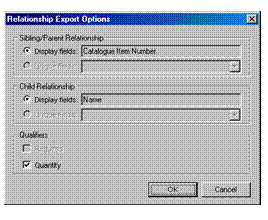
2. Select which fields MDM will export to uniquely identify the records of each relationship link:
¡ Display Fields
¡ Unique Fields
For a sibling relationship, you can specify one choice of field(s). For a parent/child relationship, you can specify two choices, one for the parent relationship and one for the child relationship (even if they are the same table).
The Display Fields edit control is always read-only and contains: (1) all the display fields for a non-hierarchy table; or (2) just the primary display field for a hierarchy table. The text in the edit control is gray when the Display Fields radio button is not selected and black when the radio button is selected.
The Unique Fields drop-down control: (1) contains the set of unique fields and unique field combinations for a non-hierarchy table; or (2) is disabled for a hierarchy table, since the primary display field is guaranteed to be unique.
3. Select whether or not to export each relationship qualifier.
4. Click OK to close the Relationship Export Options dialog.
5. MDM opens the Windows file Open dialog for you to name the export file. Navigate to the appropriate folder, select or type a file name, and click Save.
MDM exports the relationship links and displays a progress dialog to indicate the current status of the export.