
 Merging Coupled Numeric Attributes

Procedure
To merge two coupled numeric attributes with the same dimensions into a single attribute:
1. In the Attributes pane, select the two coupled numeric attributes you want to merge.
2. Right-click on one of the attributes and choose Merge from the context menu, or choose Attributes ® Merge from the main menu to open the Merge Coupled Numeric Attributes dialog shown in the figure below.
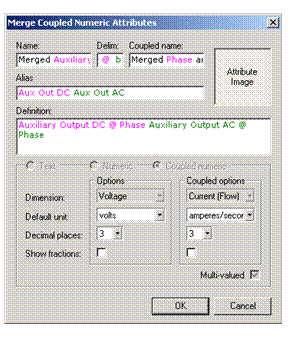
MDM populates the dialog with the values and option settings from each of the two selected coupled numeric attributes.
3. Edit the Name, Delim, Coupled Name, Definition, and Alias properties for the merged attribute.
4. Select an image and/or eliminate conflicts for the Attribute Image property.
5. Specify the settings for the Default Unit, the number of Decimal Places, and the Show Fractions option for both the first dimension and the coupled dimension.
6. If it is not disabled, specify the setting for the Multi-valued option.
7. Click OK when you are done to close the Merge Coupled Numeric Attributesdialog.
MDM merges the two selected attributes and all links to them.
Operation |
Constraints |
Merge Attributes |
· Must be in Taxonomy mode · Attributes pane must have focus · Exactly two attributes must be selected · Neither of the selected attributes can be in a matching set · The selected attributes must have the same type, and if numeric or coupled, must have the same measurement type(s) |