
 Merging Text Attributes

Procedure
To merge two text attributes into a single attribute:
1. In the Attributes pane, select the two text attributes you want to merge.
2. Right-click on one of the attributes and choose Merge from the context menu, or choose Attributes ® Merge from the main menu to open the Merge Text Attributes dialog shown in the figure below.
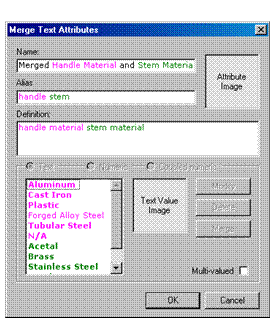
MDM populates the dialog with the values and option settings from each of the two selected text attributes.
3. Edit the Name, Definition, and Alias properties for the merged attribute.
4. Select an image and/or eliminate conflicts for the Attribute Image property.
5. Edit, delete, and merge individual text values as necessary to create a single synthesized set of text values for the merged attribute. Note the color-coding and the bold highlighting that MDM uses to indicate the source of each text value and whether or not it is in use.
6. If it is not disabled, specify the setting for the Multi-Valued option.
7. Click OK when you are done to close the Merge Text Attributes dialog.
MDM merges the two selected attributes and all links to them, and if necessary, also modifies, deletes, and merges the underlying text values.

The Merge Text Attributes dialog is almost identical to the Attribute Detail tab for text attributes, except for the absence of the Add button, and the presence of the Mergebutton (unique to this dialog) that allows you to merge pairs of text values.