
 Attribute Text Values

Use
The definition of a text attribute includes a list of text values. This list constitutes the set of legal values for that attribute; these are the only values from which you can choose and which you can assign to the attribute during data entry.

A text attribute is like a “mini” lookup table with the set of valid choices defined by the list of attribute text values rather than the records of a lookup table.
The maximum length of a text value is 128 characters.
The set of legal values associated with text attributes enforces data integrity and also makes the MDM repository much more searchable, since a consistent set of values is used across the entire MDM repository.
In addition to the Attribute Image property, the Text Value Imageproperty allows you to associate an illustrative image with each text value. Select a text value and double-click on the Text Value Imageproperty to open the Select Single Image dialog and assign an image.
To complement the Text Value Image property, the Text Value Textproperty allows you to associate a descriptive text string with each text value. Right-click on a text value and choose View/Edit Text from the context menu to open the Edit Text Value Textdialog.
Procedure
To add a new text value for a text attribute:
1. Right-click in the text value list and choose Add from the context menu, or click the Add button, or press Ins.
2. MDM adds a new text value named New Value and highlights it for editing (figure below).
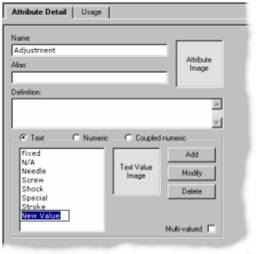
3. Type the text value, and press Enter.
To change the new text value after you press Enter, press F2 to edit and type it again.
Two text values cannot have the same name. If a text value named New Value already exists, MDM automatically names the new text value New Value (n) (where ‘n’ is the first available numeric value that will avoid a conflict).
To modify an existing text value for a text attribute:
...
1. In the text value list, select the text value you want to modify.
2. Right-click on the selected text value and choose Rename from the context menu, or click the Modify button, or press F2.
MDM highlights the text value for editing.
3. Type the text value and press Enter.
To permanently delete one or more text values for a text attribute:
...
1. In the text value list, select the text value(s) you want to delete.
2. Right-click on one of the text values and choose Delete from the context menu, or click on the Delete button, or press Del.
MDM deletes the value(s) without confirmation.
To sort the list of text values for a text attribute:
...
1. Right-click in the text value list and choose Sort from the context menu, or choose Attributes ® Sort Text Values from the main menu.
2. Choose the sort order from the cascading menu:
○ Ascending
○ Descending
MDM sorts the text values in the order you specify.
Instead of sorting in ascending or descending order, you can also manually order the text values for an attribute using drag-and-drop, just as you can manually order the siblings in a hierarchy. This allows you to precisely control the order in which they appear in drop-down lists in the MDM client and when you publish the repository to paper or to the Web.
The MDM Client brings up a confirmation dialog before actually performing the sort, to make sure you don’t inadvertently override the manual sort order of the text values.