
 Saving and Restoring Attributes

Use
When an attribute has been edited but the changes have not yet been saved, a pencil icon appears next to the attribute (figure below). You can either save the changes or restore the attribute to its original state as described in this section.
Procedure
To save changes to the attribute you are editing:
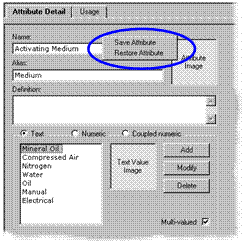
Right-click on the Attribute Detail tab (not in a property) and choose Save Attribute from the context menu (figure below), or choose Attributes ® Save Attributefrom the main menu, or press Shift + Enter.
To discard unsaved changes and restore the attribute to its prior state:
Right-click on the Attribute Detail tab (not in a property) and choose Restore Attribute from the context menu (figure below), or choose Attributes ® Restore Attribute from the main menu, or press Esc.

If you select another attribute or click on the edited attribute in the grid, changes are saved automatically and you will no longer be able to use the Restore Attribute command to undo them.