Printing the Taxonomy

Use
Taxonomy mode allows you to create a complex taxonomy that contains a substantial amount of data and metadata about the structure of your repository, including the taxonomy tree itself, linked attributes, matching sets, and other detailed information. You can use MDM to print this information in a graphical format for distribution to and review by product experts and suppliers of content, or simply for documenting the taxonomy.

MDM places a
copyright notice that you specify in the footer of each page of printed output
(for more information about the Import/Export
options, see
 Configuration
Options).
Configuration
Options).
When you use the File ® Print ® Tree command to print the taxonomy, MDM opens the Print Tree dialog, and then prints the taxonomy tree and other taxonomy information based on the option settings you specify.
You must be in Taxonomy mode to use the File ® Print ® Tree command.
Option |
Radio Button |
Description |
Print What |
Entire Tree |
Prints the entire tree. |
Selected Branch Only |
Prints just the selected branch. |
|
Selected Item Only |
Prints just the selected tree item. |
|
Tree Detail |
Tree Only |
Prints just the taxonomy tree with the name of each category (second figure below). |
Tree and Attributes |
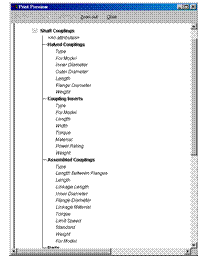
Prints the taxonomy tree, including the linked attributes for each category (third figure below). |
|
Tree, Attributes, and Details |
Prints the taxonomy tree and the linked attributes, including the properties for each attribute (last figure below). |
|
Expand Before Printing |
|
Expands all internal nodes to show children and all descendants prior to printing. |
Procedure
To print some or all of the taxonomy tree along with the linked attributes and other taxonomy information:
1. In Taxonomy mode, click the Print Tree toolbar button, or press Ctrl + P, or choose File ® Print from the main menu and choose Tree from the cascading menu to open the Print Tree dialog shown in the figure below.

2. Select a printer or other output device.
3. Specify the desired dialog settings, as described in the table above.
4. If necessary, click the Preview button to open the preview window (figures below).
You can “zoom in” on the contents of the preview window by clicking the mouse anywhere inside the window. Repeated clicks cycle through all of the zoom levels.
5. Click Print to print the taxonomy tree and associated information.