
 Finding Tree Nodes

Use
The Findcommand is available in most modes. In Hierarchy mode, it opens the Finddialog and enables you to find text strings in the hierarchy tree. The dialog offers different options depending on which mode you are in. This section describes how to use Find in Hierarchy mode; the Hierarchy mode options are summarized in the table below.
Option |
Checkbox |
Description |
Find What |
|
Type the text string you want to match. |
Search In |
|
You can only search in the tree. |
Find Options |
Match Case |
ü Require… ü Do not require… that the case match that of the text you type. |
Whole Words Only |
ü Require… ü Do not require… that the text you type match whole words. |
|
Exact |
ü Require… ü Do not require… that the text match the entire value. |
|
Search Backwards |
ü Search up… ü Search down… for the text string. |
Procedure
To open the Find dialog:
Click the Find toolbar button, or press Ctrl + F, or choose Edit ® Find from the main menu to open the Find dialog (figure below).
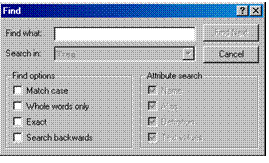

Unlike other MDM dialogs, the Find dialog remains up until you click Cancel, even if you return to the main window to perform other operations.
To find a specific text string in the hierarchy tree:
1. In the Find dialog’s Find What text box, type the text you want to match.
2. Select or clear the Find Options checkboxes described in the table above.
3. Click Find Next MDM selects and highlights the first node in the hierarchy tree that matches your text, and since the Hierarchy and Records panes track one another, also selects the corresponding record in the Records pane.
4. To find the next (or previous) matching node, click Find Next in the Find dialog, click the Find Next toolbar button, or press F3, or choose Edit ® Find Next from the main menu.
To search for records as opposed to tree nodes in a hierarchy table, switch to Record mode and search using Free-Form Search. (for more information, see Free-Form Searches).