
 Cropping and Rotating Images

When the current table is the Images table (or when processing images using the MDM Image Manager), MDM displays the Crop and Rotate tab as the fourth tab of the bottom-right pane.
The Crop and Rotate tab provides convenient and powerful image cropping and rotating features, without the need for a separate image-editing application. Within the Crop and Rotate tab, the Crop and Rotate controls appear in the vertical toolbar on the left side of the tab, to the left of the image preview, as shown in the figure below.


Regardless of which storage option you choose, the Crop and Rotate tab allows you to crop and rotate an image, provided that the link to the original is still valid if it is not stored in the repository.
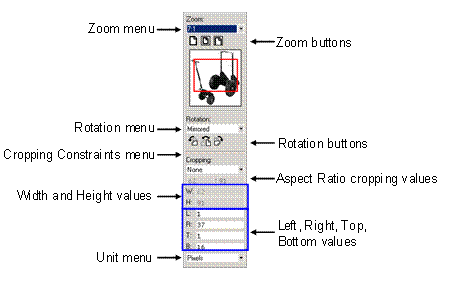
The Crop and Rotate vertical toolbar controls, shown in the figure above, make available all of the commands for viewing, rotating, mirroring, and cropping images, and enable you to perform the following operations:
● View an image at its actual size, fit to window, or fit to window width.
● Magnify the image preview up to 10 times actual size (10:1).
● Reduce the image preview down to 1/10 actual size (1:10).
● Rotate the image in either direction in 90° or 180° increments.
● Create a mirror-image of the current image.
● Use pixels or percent as measurements units.
● Select any rectangular image region for cropping, either using visual crosshairs, or by entering numeric values for pixels or percentages.
● Maintain a specified aspect ratio during cropping.
● Equally crop top and bottom, left and right, or all four sides.
The following table describes each of the controls in the Crop and Rotate tab.
Control |
Option |
Button |
Description |
|
Zoom (drop-down) |
Actual Size |
|
Displays image at actual size. |
|
Fit Window |
|
Displays the entire image within the image preview area, preserving its aspect ratio. |
||
Fit Width |
|
Displays the image with maximum width within the image preview area. |
||
10:1 ® 1:10 |
|
Displays the image according to the specified “zoom in” and “zoom out” ratio. |
||
Rotation (drop-down) |
|
None |
|
Restores the image to its original orientation, with no rotation or mirroring. |
|
90° CW |
|
Rotates the image 90° clockwise from its original orientation; toolbar button rotates from its current orientation. |
|
|
90° CCW |
|
Rotates the image 90° counterclockwise from its original orientation; toolbar button rotates from its current orientation. |
|
|
180° |
|
Rotates the image 180° from its original orientation. |
|
|
Mirrored |
|
Flips the image horizontally from its original orientation; toolbar button flips from the current mirror state. |
|
|
90° CW |
|
Rotates the image 90° clockwise and flips it from its original orientation. |
|
|
90° CCW |
|
Rotates the image 90° counterclockwise and flips it from its original orientation. |
|
|
180° CW |
|
Rotates the image 180° clockwise and flips it from its original orientation. |
|
Cropping Constraint (drop-down) |
None |
|
Does not apply any cropping constraints. |
|
Aspect Ratio |
|
Constrains the crop to the specified aspect ratio. |
||
Size |
|
Constrains the crop to the specified size. |
||
L=R |
|
Constrains the crop to trim left and right equally. |
||
T=B |
|
Constrains the crop to trim top and bottom equally. |
||
L=R; T=B |
|
Constrains the crop to trim left and right equally and top and bottom equally. |
||
L=R=T=B |
|
Constrains the crop to trim left, right, top, and bottom equally. |
||
Crop Measurements (edit controls) |
Aspect Width : Aspect Height |
|
Displays or specifies the aspect width and height. |
|
Width (W) |
|
Displays or specifies the image width. |
||
Height (H) |
|
Displays or specifies the image height. |
||
Left (L) |
|
Displays or specifies the left crop. |
||
Right (R) |
|
Displays or specifies the right crop. |
||
Top (T) |
|
Displays or specifies the top crop. |
||
Bottom (B) |
|
Displays or specifies the bottom crop. |
||
Crop Unit (drop-down) |
Pixel |
|
Display or specify Crop Measurements in pixels. |
|
Percent |
|
Display or specify Crop Measurements in percent. |
||


Cropping and rotating the image affects the variants of the image only, and not the original image. However, the original image must be stored in the repository for cropping and rotating to be available.
MDM automatically enables or disables the applicable edit controls for each constraint, and as you define or move the crop region, fills in and continuously updates the enabled edit controls with numeric values that correspond to the current crop region.
The table below summarizes the edit controls (Aspect Width, Aspect Height, Width, Height, Left, Right, Top, and Bottom) that are enabled for each selection in the Cropping Constraints drop-down control. A cross (x) means the edit control is enabled.
Constraint Edit Control |
None |
Aspect Ratio |
Size |
L=R |
T=B |
L=R; T=B |
L=R=T=B |
Aspect Width |
|
x |
|
|
|
|
|
Aspect Height |
|
x |
|
|
|
|
|
Width |
|
|
x |
|
|
|
|
Height |
|
|
x |
|
|
|
|
Left |
x |
|
|
x |
x |
x |
x |
Right |
x |
|
|
x |
x |
x |
x |
Top |
x |
|
|
x |
x |
x |
x |
Bottom |
x |
|
|
x |
x |
x |
x |