
 Viewing and Editing Multiple
Records
Viewing and Editing Multiple
Records

When multiple records are selected in the Records pane, MDM places into each cell of the Record Detail tab the distinct values for the field across the entire set of selected records. Multiple values in a cell are separated by semi-colons, and values are color-coded to indicate whether they are the same or different – and whether any values are missing – as described in the table below and shown in the figure below.
Color |
Field Values |
Description |
Missing |
None |
|
No value appears in any of the selected records. |
All |
Black |
value |
The same value appears in all of the selected records. |
None |
Blue |
value |
The same value or NULL appears in all of the selected records. |
One or more |
Magenta |
value1; value2 … |
Different values or NULL appear in the selected records. |
One or more |
Red |
value1; value2 … |
Different values appear in the selected records, but all the records have values. |
None |
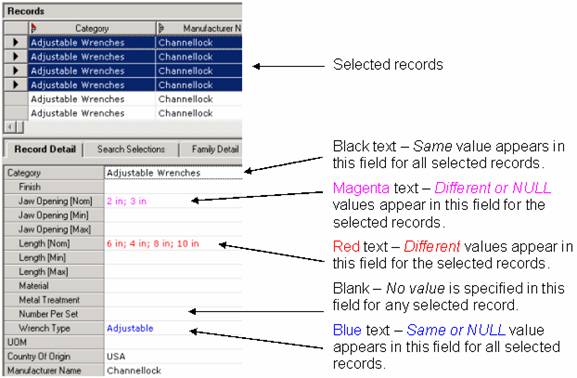
When you select multiple records that belong to more than one category, the Record Detail tab displays only the attributes that are common to all of the categories (intersection of attribute sets) rather than all of the attributes for all of the categories (union of attribute sets).
When you select multiple records that have multi-valued fields, values in the multi-valued fields are displayed in black if all the records have the same set of multiple values. If the records have different sets of values, MDM displays the distinct values from all selected records in red.
Be very careful when changing values in the Record Detail tab while multiple records are selected. If you edit a field and then save the records, all of the selected records will have the same value in that field.

Qualified lookup field links are an exception to this rule. Right-clicking on an individual link in the qualified lookup field lets you edit or remove the link and apply the change only to the originally-linked record.