
 Editing Relationships

Use
The MDM Client includes a pop-up window for reviewing, adding (linking), and removing (unlinking) related records for each product-level relationship. You access the window from the Relationships field, which appears on the right side of the Record Detail tab (figure below).

Each product-level relationship is like a multi-valued lookup field, in that it stores the links to one or more records.
You can open the Relationships pop-up window only if a single record is selected in the Records grid.
When zero records are selected or more than one record is selected in the Records grid, the Relationships field is disabled and highlighted in read-only gray.
For each product-level relationship, the Relationships field in the Record Detail tab displays a count for the number of related records. To view the actual related records, open the Relationships pop-up window and move from tab to tab.
Procedure
To open the resizable Relationships pop-up window:
In the Record Detail tab, double-click on the Relationships field to open the pop-up window shown in figure below.
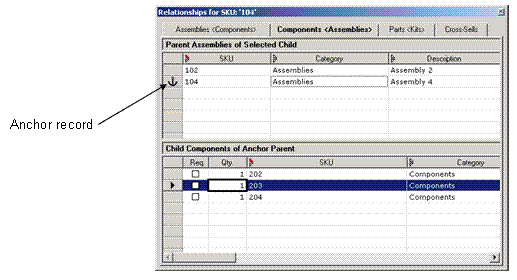
The relationship on which you double-click in the Relationships field determines the active Relationship tab when you first open the Relationships pop-up window.
The pop-up window remains open on top until you close it, and is hidden when you go into a mode other than Record mode.
The pop-up window is product-centric rather than relationship-centric, in that it shows all the related records for each relationship for the anchor record (for more information, see The Anchor Record).
For more detailed information about product-level relationships, see Product-Level Relationships.
From the Relationships pop-up window, you have access to the following functions:
● View related records for each product-level relationship.
● Add (link) related records to the anchor record.
● Remove (unlink) related records from the anchor record.
● Split related sibling records into a new sibling group.
● Reorder the child records of a parent/child relationship.
● Change the anchor record.
● Import relationship links from a text file.
● Export relationship links to a text file.
To add one or more related records to a relationship:
1. If necessary, click on the tab for the relationship to which you want to add related records to make it the active tab.
2. Make sure the current table is the table that contains the records you want to add.
3. In the Records pane, select the records that you want to relate to the anchor record, either as:
○ siblings of a sibling anchor
○ children of a parent anchor
○ parents of a child anchor.
4. Choose Relationships ® Add to Relationshipfrom the main menu, or drag-and-drop the records into the applicable sibling grid or non-anchor parent/child grid. MDM adds the related records.
When you add new records to a child grid that has a Position: (1) the Add to Relationshipmenu command adds them as the last related records; and (2) drag-and-drop adds them into the position at which you drop them.
Required and Quantity, if they are defined for the relationship, are assigned default values when you first add the related records (Required=No and Quantity=1). To change the default values, you can: (1) click on the Required checkbox to toggle whether or not the record is required; and (2) click on the Quantity cell and type a new value.
You can also drag-and-drop records from the Records pane directly into the anchor parent/child grid if a single record is selected in the non-anchor grid.
To remove one or more related records from a relationship:
...
1. If necessary, click on the tab for the relationship from which you want to remove related records to make it the active tab.
2. In the applicable grid, select the records you want to remove.
3. Right-click on one of the records and choose Remove from Relationship from the context menu, or press Del, or choose Relationships ® Remove from Relationship from the main menu.
MDM removes the related records.
The Relationships ® Remove from Relationship main menu command deletes the selected records in the grid that has the focus.
To split one or more related records into a new sibling group:
...
1. If necessary, click on the tab for the sibling relationship whose related records you want to split to make it the active tab.
2. In the Sibling grid, select the records you want to split into a new sibling group.
3. Right-click on one of the records and choose Split from Relationship from the context menu, or choose Relationships ® Split from Relationship from the main menu. MDM splits the related records into a new sibling group and removes them from the grid, unless the anchor is one of the selected records, in which case, the unselected records are removed from the group.
To reorder the set of related records in a relationship:
...
1. If necessary, click on the tab for the relationship whose related records you want to reorder to make it the active tab.
2. In the Child grid, select the records you want to reorder.
3. Drag-and-drop the records into their new position within the grid. MDM moves the selected records to the new position.
When the child grid has a Position column, the rest of the columns are non-sortable so that drag-and-drop makes sense.
To change the anchor record to another related record in the active relationship tab:
Double-click on the related record. MDM moves the anchor icon to the new anchor record.
If the new anchor is in the non-anchor grid of a parent/child relationship tab, MDM also automatically switches the active tab to the tab for the other half of the parent/child relationship.
To navigate the levels of a multi-level parent/child relationship defined within a table, proceed as follows
i. double-click on a related record in the non-anchor grid to make it the new anchor
ii. manually switch the active tab back to the tab for the original half of the parent/child relationship
iii. repeat.
To navigate up to parents and grandparents, start with the Parent tab as the active tab. To navigate down to children and grandchildren, start with the Child tab as the active tab.
Changing the anchor record preserves as much context as possible in the relationship tab grid or grids:
■ If the active tab is a sibling tab, both the active tab and the set of related records in the Sibling grid remain the same.
■ If the active tab is a parent/child tab and the new anchor is in the non-anchor grid, the active tab changes to the tab for the other half of the relationship, but the set of related records in both grids remain the same.
■ If the active tab is a parent/child tab and the new anchor is in the anchor grid, the active tab and the set of related records in the anchor grid remain the same, and only the set of related records in the non-anchor grid changes (to correspond to the new anchor).
To change the anchor record to a record in the Records grid:
Double-click on the record in the Records grid. MDM attempts to make the selected record the new anchor in the anchor grid of the active tab.
For a parent/child relationship tab, if the current table is the table of the non-anchor grid but not of the anchor grid, MDM switches the active tab to the tab for the other half of the relationship and makes the selected record the new anchor in that grid.
If the current table does not participate in the relationship of the active tab at all, double-clicking on the record in the Records grid has no effect and the anchor record remains unchanged.
To view the related records of each successive record in the Records grid, double-click on each record in the Records grid in sequence to change the anchor to that record in the active tab.
To import a set of links for the related records of a relationship:
...
1. Choose Relationships ® Import from File from the main menu, and then select from the cascading menu of relationships the relationship into which you want to import relationship links.
2. MDM opens the Windows file Open dialog for you to select a file. Navigate to the appropriate folder, select the text file that contains the set of relationship links, and click Open. MDM imports the relationship links and displays a progress dialog to indicate the current status of the import.
MDM appends the imported relationship links to the set of existing links for each record by:
■ Adding new links
■ Updating existing links with the specified qualifier values
For an update, an unspecified qualifier value is ignored and does not overwrite the existing value with NULL (that is, the setting of the NULL Values Overwrite Existing Values configuration option is ignored).
Only the following field types are supported for relationship imports:
■ Text
■ Text Normalized
■ Integer
■ Auto ID
■ Lookup [Flat]
■ Lookup [Hierarchy]
■ Lookup [Qualified Flat] (multi-valued)
■ Lookup (Taxonomy)
■ Taxonomy (category).
To export a set of links for the related records of a relationship:
...
1. Choose Relationships ® Export to File from the main menu, and then select from the cascading menu of relationships the relationship for which you want to export relationship links.
2. MDM opens the Windows file Open dialog for you to name the export file. Navigate to the appropriate folder, select or type a file name, and click Save.
MDM exports the relationship links and displays a progress dialog to indicate the current status of the export.