
 Multi-Valued Lookup Cells

Sometimes a lookup field or text attribute allows you to select multiple items from the predefined set of lookup values. For such a multi-valued field or attribute, the cell in the Record Detail tab is a custom drop-down control for multiple-item selection:
Drop-down list
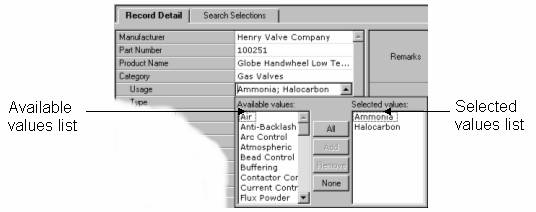
For a multi-valued lookup field into a flat table or a text attribute, the drop-down control contains a pair of lists: the list of available items on the left and the list of selected items on the right (figure below).
Drop-down tree
Similarly, for a multi-valued lookup field into a hierarchy table, the drop-down control contains the tree of available items on the left and the list of selected items on the right (figure below).

On either side, you can highlight one or more items, either adjacent or non-adjacent, and move them from one side to the other for selection or deselection. (For more information about the different selection procedures, see Selection Methods.)

When you add a flat item to the list of selected items, it is removed from the list of available items. When you add a hierarchy item to the list of selected items, it remains in the tree of available items and is highlighted in bold.
You can select and add only leaf-node values from the tree of available items.
The dual-list drop-down control for multiple-item selection appears not only in the drop-down edit control for multi-valued text fields and attributes, but also in various dialogs where multiple items can be selected, such as the Fields, Modify Mask, Create Publication, and Export dialogs, and in the object selector dialogs for Data Group selection.
Multiple values are separated in the cell in the Record Detail tab by semi-colons, as shown in the following figure.

There are various ways to move items from one list to the other to select (or deselect) one or more items, and to reorder them within the lists:
Buttons
Click the Add (or Remove) button to move highlighted items from the Available list to the Selected list (or from the Selected list back to the Available list), or use the All (or None) button to select or deselect all of the items.
Double-click
Double-click an item to move it between lists (dual-list control only).
Drag-and-drop
Drag-and-drop one or more items to move them from one list to the other (dual-list control only).
Reorder
To reorder items in the selected list, highlight one or more items (adjacent or non-adjacent), then drag-and-drop them as a group anywhere within the list to move them before the list item onto which you drop them.