
 Repository List

Use
You may add entries to the Connect to Repository dialog’s drop-down list of repositories as described below.
Procedure
To add a new repository entry to the drop-down list of repositories:
1. In the Connect to MDM Repository dialog, click the “…” (browse) button to open the Choose Repository dialog shown in the figure below.
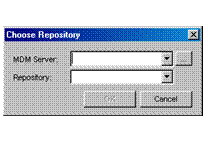
2. Type the name of the applicable MDM Server or select one from the drop-down list.

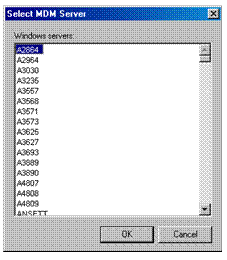
The drop-down list of MDM Servers includes only those servers that you have previously mounted. If the desired server is not in the list, click the browse button (…) to open the Select MDM Server dialog shown in the following figure, and select a machine on which MDM Server has been installed from the list of Windows machines visible on the local network. Alternatively (and for all non-Windows installations), type the name or IP address of any remote machine into the edit box in the Choose Repository dialog.
3. Select an MDM repository from the drop-down list of repositories.
4. Click OKwhen you are done to close the Choose Repository dialog. MDM adds the repository to the list of repositories in the Connect to MDM Repository dialog.