3.4.4 Configuring Personalization Settings 
You can make different configuration settings that help you personalize the design of NWBC. Choose  Settings
  Personalize
  .
.
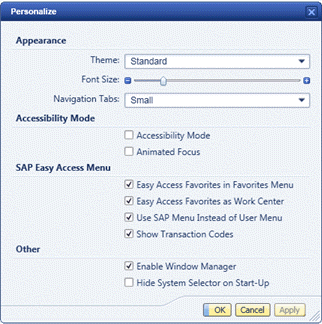 (Personalize dialog box)
Name |
Description |
|---|---|
Theme |
You can choose between Standard and High Contrast.
The High Contrast theme applies to the shell as well as to Web Dynpro applications, SAP GUI transactions, and service maps loaded in the content area. Content embedded as Web URL is not displayed with the High Contrast theme. If you change the theme for a SAP GUI transaction, you have to restart NWBC for the change to take effect. |
Font Size |
Use the slider to increase or decrease the font size. |
Navigation Tabs |
You can choose between small and large navigation tabs. |
Accessibility Mode |
Use this option to enable the accessibility mode. Accessibility mode means that the rendered HTML pages contain additional HTML coding, which provides input for screen readers. |
Animated Focus |
This option improves the display of the active focus. A red frame is displayed around the focused screen element. When you press the tab key, the focus and the red frame moves to the next element. |
Easy Access Favorites in Favorites Menu |
You can use this option to display the favorites that you have defined in the SAP Easy Access menu in SAP GUI. This option is only relevant for NWBC for Desktop. |
Easy Access Favorites as Work Center |
This option displays your SAP Easy Access favorites as a work center. This option is only relevant for NWBC for Desktop. |
Use SAP Menu Instead of User Menu |
You can use this option to display the SAP menu instead of the menu defined for your role in PFCG. This option is only relevant for NWBC for Desktop. |
Show Transaction Codes |
This option allows you to display the transaction codes (technical names) in addition to the transaction names in the left navigation panel. This option is only relevant for NWBC for Desktop. |
Enable Window Manager |
In the Window menu, a window manager is offered, which helps the user to control the placement and appearance of Business Client windows. The user can access the window manager by choosing The window manager shows all open windows and allows you to change the appearance and placements of the windows. |
Hide System Selector on Start-Up |
This option is activated per default. If this checkbox is selected, NWBC automatically logs on to the last used/active system connection. For information on system configuration, see 3.4.1 Configuring System Connections. If you deselect this checkbox, NWBC displays a system selection screen, just like the normal logon screen, where you can choose between all systems that have been configured. In addition, on the system selection screen, you can change or delete existing connections or create new ones. For more information, see 2.1 Starting NWBC. |
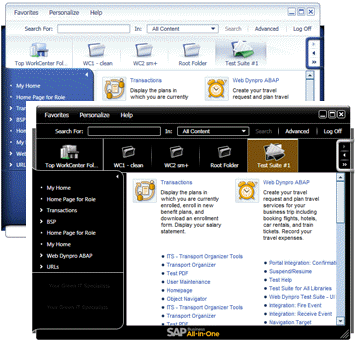 (Example of the two themes)