 Creating the Base Model
In this example, you define the basic elements – a data service with input form and output form – of the model. This will serve as the root model on which you can build in different directions.
Prerequisites
As outlined in Creating a Bank Information iView.
Procedure
Create the model and name it appropriately, such as SecondExample.
Create an iView (dragging the iView icon from the Compose Model task panel) and call it BanksA.
Add the data service:
Drill down into the iView, click the Find Data button in the task-panel toolbar and from the System drop-down list, choose the IDES system defined in the portal (the source of the data we need): such as IDES_R3.
In the Service field, enter: BAPI_BANK_GET and click Search. A list of all data services matching the search string is displayed.
Drag BAPI_BANK_GETDETAIL onto the Design board. The Define Data Service dialog box is displayed.
Select the BANK_ADDRESS port and click OK.
Test the data service (choosing the Test Data Service option from the context menu), using the following values:
Bankcountry: US
Bankkey: 12345678 or 021000089
Define the input:
Drag out from the Input port of Bank Getdetail, and choose Add Input Form from the context menu. The Select Input Fields dialog box is displayed.
Select both the BANKCOUNTRY and BANKKEY checkboxes and click OK.
You can double-click the submit line to see (at the bottom of the Configure Element task panel) that the fields have been mapped automatically to the Input port of the data service.
Define the output from Bank Getdetail:
Drag out from the BankAddress output port of Bank Getdetail, and choose Add Form View from the context menu. The Select Display Fields dialog box is displayed.
Select the following fields to display in the iView: BANK_NAME, BANK_NO, CITY, REGION and STREET and click OK.
Adjust the iView layout by clicking the Layout tab:
Right-click the Bankcountry field that appears in the Input Form and choose Properties from the context menu.
On the Display tab, change the label of the field to Bank Country, and from the Label position drop-down list, choose Long Label.In the Layout workspace, the field label is updated.
Repeat the step for Bankkey, making it Bank Key, with a long label.
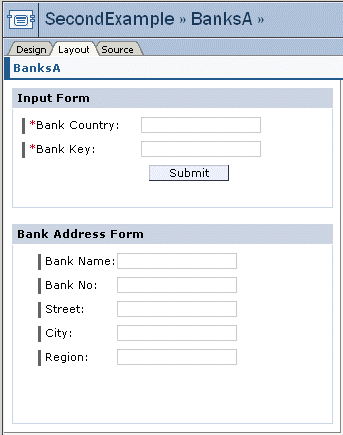
Rearrange the form to accommodate the changes you made.
 Note
NoteYou can align fields within a form, or views on the layout, by selecting each item (using the Ctrl key) and clicking the
 (Align Controls) button in the Layout
toolbox at the bottom.End of the note.
(Align Controls) button in the Layout
toolbox at the bottom.End of the note.Resize the Bank Address Form and rearrange the fields as follows: BankName, BankNo., Street, City, Region.
Save the model, which should look something like this:
 (Banks Base Model - Layout)
Deploy the model by clicking the
 (Deploy Model) button in the toolbar.
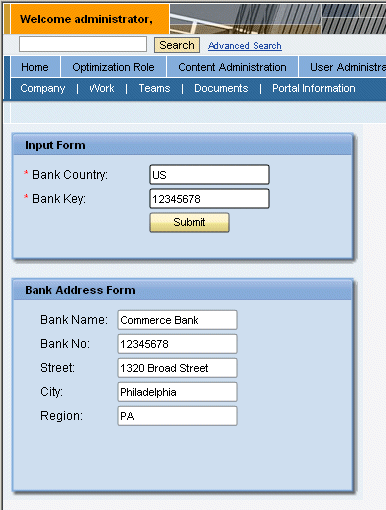
Result
Your runtime model should look similar to the following:
 (Banks Model - Runtime)
This model is the base iView for going in one of two directions:
Building an input section to the iView, by adding a second data service (Adding a Data Service for Choosing Banks) and subsequently creating a wizard (Creating a Wizard)
Creating a popup iView to bring in the same data (Creating a Popup iView)