Splitter Properties 
border
Border around the area enclosed by the Splitter.
Value
Example of the Visualization
Description
areadivider
 (border=areadivider)
A three-dimensional border is displayed.
closure
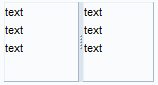 (border=closure)
A small, simple border is displayed.
closurelight
 (border=closurelight)
A small, simple border is displayed that is lighter than closure.
none
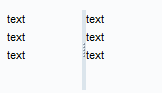 (border=none)
No border is displayed.
collapseDirection
This property enables you to expand and collapse a page of the Splitter.
Value
Example of the Visualization
Description
toBegin
 (collapseDirection=toBegin)
The sash (Sash) has a button with an arrow symbol pointing to the left (see figure). If you choose the button, the sash is collapsed to the left so that the left area of the Splitter is no longer visible. The right area of the Splitter, on the other hand, is expanded to the full width and height of the UI element.
With horizontal orientation of the sash, the behavior is the same. The arrow symbol of the button points upwards and the sash is collapsed upwards. The bottom area of the Splitter is expanded to the full height of the UI element.
If a sash is pulled to the end of the area, the direction of the arrow changes. If you choose the button again, the sash is returned to its original position. The arrow points in the original closing direction again.
It is possible to move the sash.
toEnd
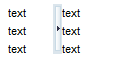 (collapseDirection=toEnd)
 The sash has a button with an arrow symbol pointing to the right (see figure). If you choose the button, the sash is collapsed to the right so that the right area of the Splitter is no longer visible. The left area of the Splitter, on the other hand, is expanded to the full width of the UI element.
With horizontal orientation of the sash, the behavior is the same. The arrow symbol of the button points downwards and the sash is collapsed downwards. The top area of the Splitter is expanded to the full height of the UI element.
If a sash is pulled to the end of the area, the direction of the arrow changes. If you choose the button again, the sash is returned to its original position. The arrow points in the original closing direction again.
It is possible to move the sash.
none
 (collapseDirection=none)
 You can only move the sash; you cannot expand it, the sash does not have a button.
height
Height of the UI element.
 Note
NoteThe height of the Splitter must be specified as a percentage or in pixels.
End of the note.orientation
Alignment of the Splitter: horizontal or vertical.
Value
Example of the Visualization
Description
horizontal
 (orientation=horizontal)
Splitter is displayed horizontally.
vertical
(orientation=vertical)Splitter is displayed vertically.
sashDesign
Visualization of the sash (Sash)
Value
Example of the Visualization
Description
standard
 (sashDesign=standard)
Initial Value
contour
 (sashDesign=contour)
The color of the sash is darker than the standard display.
sashPositionMode
Type of sash display in a Splitter, depends on the value specified for sashPosition.
Value
Example of the Visualization
Description
absoluteFromBegin
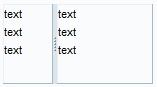 (sashPositionMode=absoluteFromBegin and sashPosition=50)
The position of the sash is calculated as an absolute value in pixels (see sashPosition) starting from the beginning of the Splitter.
absoluteFromEnd
 (sashPositionMode=absoluteFromEnd and sashPosition=50)
The position of the sash is calculated as an absolute value in pixels (see sashPosition) starting from the end of the Splitter.
percent
(sashPositionMode=percent and sashPosition=50)The position of the sash is calculated as a percentage (see sashPosition) starting from the beginning of the Splitter.
sashType
Type of sash for use interaction
Value
Example of the Visualization
Description
fixed
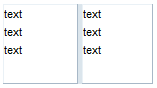 (sashType=fixed)
The sash type is fixed and cannot be changed by the user.
interactive
(sashType=interactive)The sash can be changed by the user.
invisible
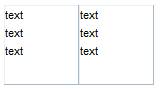 (sashType=invisible)
The sash is invisible.
width
Width of the UI element.
NoteThe width of the Splitter must be specified as a percentage or in pixels.
End of the note.