 Moving Between UIBB and Floorplan Components
A Floorplan Manager (FPM) application configuration consists of a floorplan component with one or more User Interface Building Block (UIBB) components.
You can use FPM's configuration editor, FLUID, to edit both the floorplan and UIBB components of an application.
You can use the following objects to move between the two types of components:
Breadcrumb above the work area
Configure UIBB button on the <Floorplan> Schema panel toolbar
Configurable UIBB in the Preview panel
This is explained in detail in the following sections.
Prerequisites
You have launched FLUID from an application, and the application is now displayed, at floorplan level, in the design time environment.
Procedure
Using the Configure UIBB Button

To move from the floorplan component level to the UIBB component level in FLUID, proceed as follows:
Choose the <Floorplan> Schema panel (the figure above shows the panel for an Overview Page type of floorplan).
Choose a row in the table that contains the UIBB you want to edit.
Note that a UIBB can only be edited (configured) if a Configuration Name is present; the Configure UIBB button is only visible if there is a configuration name.
Choose Configure UIBB.
Depending on the type of UIBB you selected, the following occurs:
GUIBB (for example, the list component in the figure below)
In the same window, FLUID now switches to the settings for the selected GUIBB. FLUID indicates that you are now on the UIBB component level in the following ways: the settings inside the General Settings panel are appropriate only to the selected type of GUIBB, the Navigation panel is unavailable, and the <Floorplan> Schema panel is replaced by the <GUIBB> Schema panel.
Freestyle UIBB
FLUID redirects you to the standard Web Dynpro configuration editor; you cannot configure freestyle UIBBs inside FLUID.
To return to the floorplan component inside FLUID, use the breadcrumb above the work area (described in the section below).
Using the Configurable UIBB Box
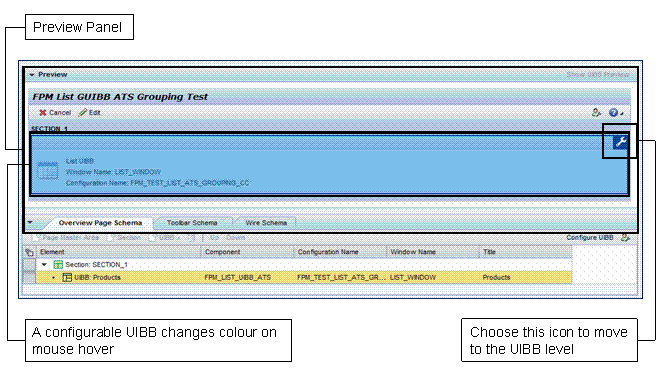
To move from the floorplan component level to the UIBB component level in FLUID, proceed as follows:
In the Preview panel, move the mouse over the UIBB you want to edit.
If the UIBB is configurable, the box representing the UIBB is then highlighted. It also contains an icon in the top, right corner of the box.
Choose the icon inside the UIBB box.
Depending on the type of UIBB you selected, the following occurs:
GUIBB (for example, the list component in the figure above)
In the same window, FLUID now switches to the settings for the selected GUIBB. FLUID indicates that you are now on the UIBB component level in the following ways: the settings inside the General Settings panel are appropriate only to the selected type of GUIBB, the Navigation panel is unavailable, and the <Floorplan> Schema panel is replaced by the <GUIBB> Schema panel.
Freestyle UIBB
FLUID redirects you to the standard Web Dynpro configuration editor; you cannot configure freestyle UIBBs inside FLUID.
To return to the floorplan component inside FLUID, use the breadcrumb above the work area (described in the section below).
Using the Breadcrumb

To move from the UIBB component level back to the floorplan component level in FLUID, proceed as follows:
Locate the breadcrumb, just below the page toolbar and above the work area.
There are three hyperlinks in the breadcrumb. One hyperlink is not active (this represents the UIBB component that you have been making changes to).
The text of the hyperlink next to the inactive hyperlink begins with the abbreviated name of the floorplan (for example, OVP in the figure above). Choose this hyperlink.
The system navigates you back to the floorplan component of the application.