 Adapting Print Forms in Shipping and Receiving
These examples show how to create a custom print form for a CMR road waybill for transportation units and, optionally, how to create a custom ABAP class inheriting from the standard ABAP class to process this form.
Procedure
Example 1: Creating a Custom PDF-Based Form for a CRM Road Waybill
Copy standard form
/SCWM/SR_CMR
to a customer-specific form in transaction SFP, as follows:On the
SAP Easy Access
screen, choose
Tools

Form Printout
Interactive Forms.

Copy the form
/SCWM/SR_CMR
to a customer-specific form.Adapt the form to your needs and activate it.
 Note
NoteIf you use Smart Forms instead of PDF-based forms, use transaction SMARTFORMS instead. On the
SAP Easy Access
screen, choose Tools
Form Printout
Smart Forms
.End of the note.If you use only one form in SAP Extended Warehouse Management, assign the new form to the condition configuration of the PPF action definition, as follows:
In Customizing for
Extended Warehouse Management
, choose Cross-Process Settings
Shipping and Receiving
Define Action Conditions for Transportation Units
.Choose action profile
Shipping & Receiving - Transportation Unit
(technical name:/SCWM/TU
) and action definitionPrint Waybill
(technical name:/SCWM/SR_PRINT_TU_WAYBILL)
.Switch to the change mode. On the tab
Processing Details
, selectExternal Communication
for PDF-based forms orSmart Forms Print
for Smart Forms processing. DeselectDefault Settings from Action Definition
and enter the customer-specific form in theForm Name
field.Save your entries.
If you use different forms depending on application data, maintain the form determination, as follows:
NoteIf the form determination is maintained, it has precedence over the form maintained in the condition configuration of the PPF action definition.
End of the note.On the
SAP Easy Access
screen, choose Extended Warehouse Management
Settings
Shipping and Receiving
Set Up Printer and Form Determination
(transaction SCWM/SR_PRINT). In the dialog structure, choose Define Access Sequence
.Select entry
Transport Unit
, action profile/SCWM/TU
, and print/formForm Determination
, and in the dialog structure, chooseDetermine Form Name
.
Save your entries.
Example 2: Creating a Custom ABAP Class for a Custom PDF-Based Form
If not all the data you need in the customer-own form is available in the form interface, you can create your own ABAP class to process the form. In this example, you add a field to the form. Note that the form interface filled by the ABAP class must be the same as the form interface assigned to the form.
Replace the standard form with a customer-specific form as described in example 1.
In DDIC, enhance the interface structure
/SCWM/S_SR_PRINT_CMR
or the items structure/SCWM/S_SR_PRINT_CMR_ITEM
. For example, insert a new append structure containing a field you want to print on the form.Activate your changes.
Change the customer-specific form.
Add the new field from the interface structure to the form. Activate your changes.
Create a customer-specific processing class inheriting from standard class
/SCWM/CL_SR_PRINT_WAYBILL
.For this purpose, enter the standard class as superclass in the class properties of the new class. Redefine the methods you want to change, for example,
GET_DATA_CMR or ADD_ITEM_CMR
. You can either implement your own coding in the methods or first call the corresponding method of the superclass and then change the exporting parameters.Create a customer-specific Business Add-In (BAdI) implementation with a customer-specific filter value for
BAdI DOC_PERSONALIZE_BCS
. The BAdI implementation is called upon execution of the PPF action for waybill printing.Enter transactionSE19 and in the
Classic BAdI
area, chooseCreate Implementation
, enter BAdI name DOC_PERSONALIZE_BCS and pressCreate Implementation
.In the
Business Add-In Builder: Create Filter Value
dialog box, enter an implementation name, such as ZEWM_PRINT_WAYBILL, and a format, such as ZEWM_PRINT_WAYBILL. The format is the filter value for the BAdI implementation.On the next screen, enter an implementation short text.
Choose the tab
Interface
and implement methodPERSONALIZE_PDF_DOC_PDFIF
.Copy the coding from class
/SCWM/CL_IM_SR_PRINT_PDF
methodIF_EX_DOC_PERSONALIZE_BCS~PERSONALIZE_PDF_DOC_PDFIF
into the method.In the copied coding replace
/SCWM/CL_SR_PRINT_WAYBILL
in the DATA statement with the processing class you created in step 3 and replace/SCWM/SR_PRINT_WAYBILL
with the new filter valueZEWM_PRINT_WAYBILL
.Save and activate the method and the class in a customer-specific package.
On the
Business Add-In Builder: Change Implementation
screen, activate the BAdI implementation.
Assign the new BAdI implementation to the condition configuration of the PPF action definition, as follows:
In Customizing for
Extended Warehouse Management
, choose Cross-Process Settings
Shipping and Receiving
Define Action Conditions for Transportation Units
.Choose action profile
Shipping & Receiving - Transportation Unit
(technical name:/SCWM/TU
) and action definitionPrint waybill
(technical name:/SCWM/SR_PRINT_TU_WAYBILL
).Switch to the change mode. On the tab
Processing Details
, selectExternal Communication
processing for PDF-based forms orSmart Forms Print
for Smart Forms.Deselect
Default Settings from Action Definition
and enter the customer-specific format you created in step 3 (for example, ZEWM_PRINT_WAYBILL).
Save your entries.
The figure below illustrates example 2. The customer's objects and settings are represented by the yellow elements.
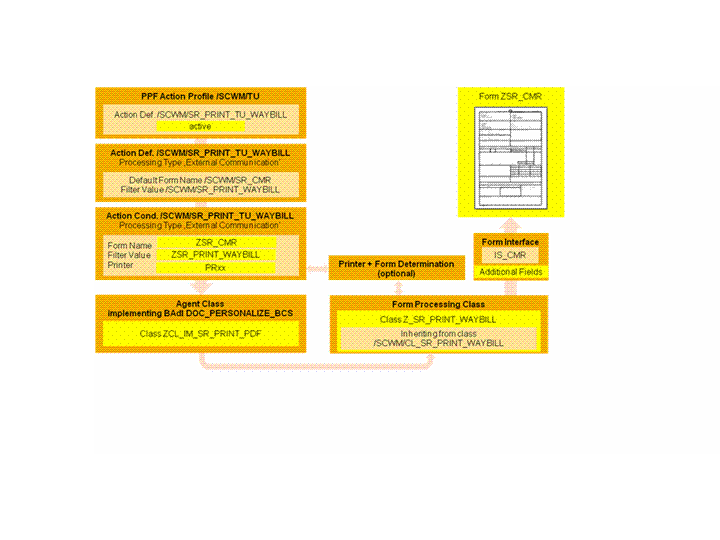
ABAP Class for a Custom PDF-Based Form
Example 3: Creating a Custom ABAP Class for a Smart Form Form
Follow steps 1-4 as described in example 2.
Create a customer-specific agent class inheriting from standard class
/SCWM/CL_SR_PRINT_SF
, as follows:Enter the standard class as superclass in the class properties of the new class.
Redefine method
EXEC_SF_WAYBILL
and in the implementation of the method, replace/SCWM/CL_SR_PRINT_WAYBILL
in the DATA statement with the processing class you created in the previous step.
Save and activate your changes.
Assign the new agent class to the condition configuration of the PPF action definition, as follows:
In Customizing for
Extended Warehouse Management
, choose Cross-Process Settings
Shipping and Receiving
Define Action Conditions for Transportation Units
.Choose action profile
Shipping & Receiving - Transportation Unit
(technical name:/SCWM/TU
) and action definitionPrint waybill
(technical name:/SCWM/SR_PRINT_TU_WAYBILL
).Switch to the change mode. On the tab
Processing Details
, selectSmart Forms Print
processing for Smart Forms.Enter the customer-specific agent class in the
Processing Class
field.
Save your entries.