Processing Fields
Displaying Field Values at Runtime
You can use the Fields display mode in the Debugger to display the contents of program fields. The display can accommodate up to eight fields. This is the default display mode in the Debugger. The following data objects are supported:
-
Single field
-
Structured fields
-
Strings
-
Internal tables
-
Objects
With more complex data objects such as references or tables, the contents are not displayed directly in the default display mode. Instead, you have to double-click the Field Names to call up the appropriate Attribute Display.
Procedure
To display the contents of a field, enter the name of this field under field name and press <ENTER>. Alternatively, you can double-click the name of a field in the program code to show this field's contents.
Example:
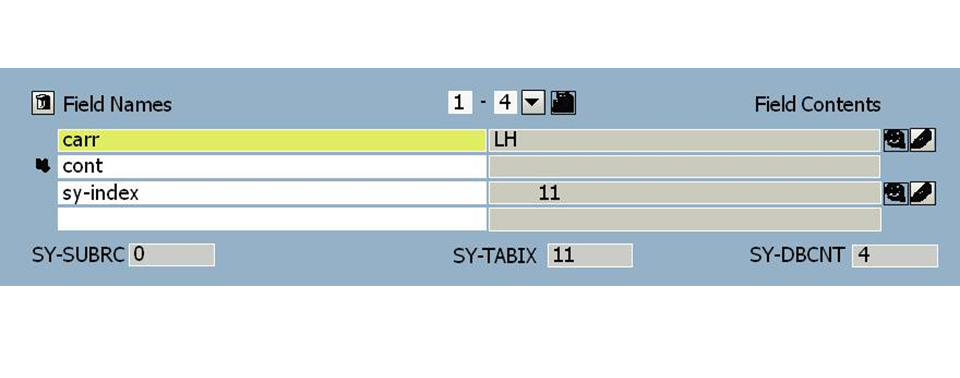
Displaying Further Fields
 The field display can contain up to eight fields, of which only four can be displayed at a time. You can display the other fields by using the scroll buttons.
Displaying System Fields
This display mode allows you to display the contents of any system fields. The three most important system fields SY-SUBRC, SY-TABIX, and SY-DBCNT are always displayed.
Displaying Fields from External Programs
You can also display the contents of fields from external programs if you know the names of these programs and have already stepped through them. To do so, enter the program name in brackets before the field name in the field display, that is: (program name)field name, for example (SAPMSCLM)ACTION; lowercase is also possible.
Special Types of Field Display
-
As in the program source code, you can make offset and length entries for character-type fields. If, for example, you enter sy-datum+4 (2) in the Field Display, the current month of the system date is displayed under Field Contents.
-
If you specify an integer in angle brackets after the name of an internal table, the content of the line that corresponds to the integer is output. The entry itab[4], for example, displays the fourth line of the internal table itab. If the integer exceeds the number of current table lines, the table will be flagged as unknown.
-
With data references, the content of the referenced data object is displayed if an arrow and asterisk are appended to the name of the reference. r->* displays the content of the field that is referenced by the data reference r.
-
If you double-click a data or object reference under Field contents in the default display mode, all the attributes and field contents of the referenced data object are displayed in the next screen (data references). The attributes and values of the current instance of all referenced classes and interfaces are output under object references. 7<cl>, for example, displays all the values of the seventh instance from class cl.
-
The headers of strings, internal tables as well as data and object references are displayed if you place an asterisk at the beginning of the name. For example, the header of the internal table itab is displayed in hexadecimal format if you enter *itab in the Field Display. The field contains zeros if a table does not have a header.
-
If you place an ampersand at the beginning of the name, the reference of strings, internal tables as well as data and object references are displayed in hexadecimal format. The entry &str, for example, displays the reference to the string str.
Changing the Display Format
You can display the field contents either formatted for their data type or in hexadecimal format.
 Use this button to display the field contents in hexadecimal format.
 Use this button to display the field contents in their original output format.
Deleting All Field Names
 Use this button to delete all field names from the field display.
Changing Field Values at Runtime
You can change the values of fields at runtime to see how the change would affect the program flow. Suppose you have found out that a field contains an incorrect value. You would be able to replace it with another value in the Debugger to test whether the program would run properly in that case.
You can change the values of the following data objects of your program. If you enter a value with an incompatible type, the system displays an error message.
-
Single fields
-
Structured fields
-
Strings
-
Fields of internal tables
-
Fields of classes and interfaces
Procedure
To replace the contents of a single field, proceed as follows:
With certain data objects such as structures or internal tables, you first have to double-click the appropriate field name to display the attributes. You then have to double-click the individual fields again to open the display mode.
Result
The Debugger writes the new value to the program field and the system records the change in the system log. If you do not click the pencil icon, the changed value is ignored.
The Debugger accepts the values exactly as you entered them. You must, therefore, ensure that you use the correct format (upper and lowercase, left-justified entry for hexadecimal numbers).