Displaying the Source Code
All of the display modes in the Debugger have the same structure. The top half of the screen displays an extract from the program source code as it appears in the ABAP Editor.
Example:

Features
The Source code of field contains an extract from the program, subroutine, or function module currently being processed. The source code display also contains the following additional functions:
Enlarge/Reduce Program Segment
 Use this button to close the information about the current display mode. The system then displays more of the source code.
 Use this button to reopen the information for the current display mode.
Enter Line Numbers
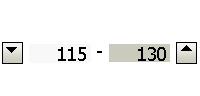
You can scroll in the source code using the arrow keys. If you enter a line number in the left-hand field, that line will become the top line of the display.
Scroll by Double-Clicking
If you double-click the first column of a line, it becomes the top line of the display.
Scroll One Screen at a Time
You can use the
PgUp
 and
PgDn
and
PgDn
 keys to scroll up and down one page at a time in the source code.
Navigate Forwards and Backwards
If you choose
 Debugging
  Goto Statement
  , the line containing the cursor is displayed. This provides you with a straightforward way of navigating forwards and backwards in the displayed source code. To execute this function you require change authorization for the Debugger.
However, the statements between your current location and the location of the cursor will not be executed. Before using this function, be aware that jumping between statements can change the program logic.
Display the Current Line
 This arrow indicates the next line of source code that will be processed.
 Use this button to make the current line appear in the source code display.
Display After a System Exception
When a system exception is triggered, a warning triangle appears in the line containing the statement that caused it. If you double-click the warning triangle, the internal name of the runtime error appears.
Find a String in the Source Code
To
find a string in the source code, choose
Edit Find in Source Code or the Find icon from the standard toolbar. A dialog box appears in which you can enter a string:
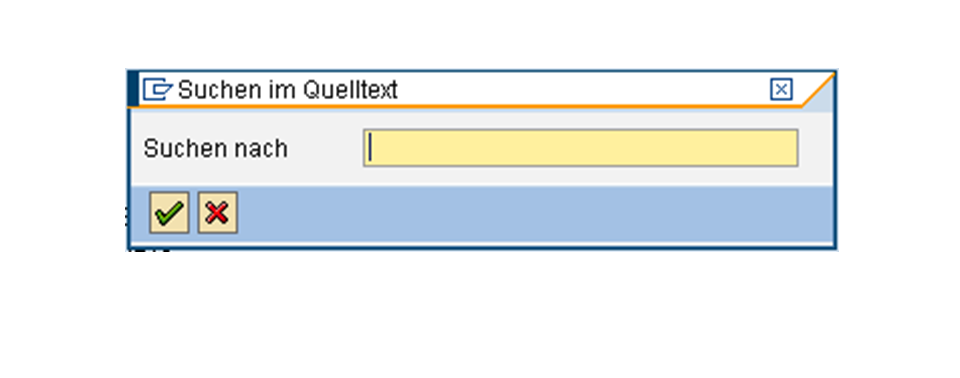
To find the next occurrence of the same string, choose
Edit Find next in source code , or the appropriate icon.