The Details Display of the ABAP Coverage Analyzer
Use the Details Display to view Coverage Analyzer data in detail. You can do the following:
- See the individual code coverage of the programs, function groups, and classes that
you are developing or testing.
You can see at a glance which of your programs have been adequately tested and for which you still need to create or improve unit tests, functional tests, or integration tests.
- Drill down to see the code coverage of the processing blocks that make up a
program.
You can see why a particular program does not attain your code coverage standards by looking at the code coverage of the processing blocks in the program. You can see which forms, methods or other processing blocks are not adequately tested.
- Drill down to see the branch and statement coverage in the source code of a method,
form routine or other processing block.
To fine-tune your tests or understand gaps in testing, you can see which branches and statements in a processing block have been executed.
Start the Detail Display in transaction SCOV by choosing  Coverage Analyzer
  Display Details
  .
.
The Detail Display is meant for displaying limited numbers of programs (by default, up to 1000 programs). When you start the Detail Display, you are therefore asked to select the programs to display.
You can customize the appearance of the Detail Display on the Settings tab of the selection options. For example, you can start the display sorted by programs, packages, or program owners.
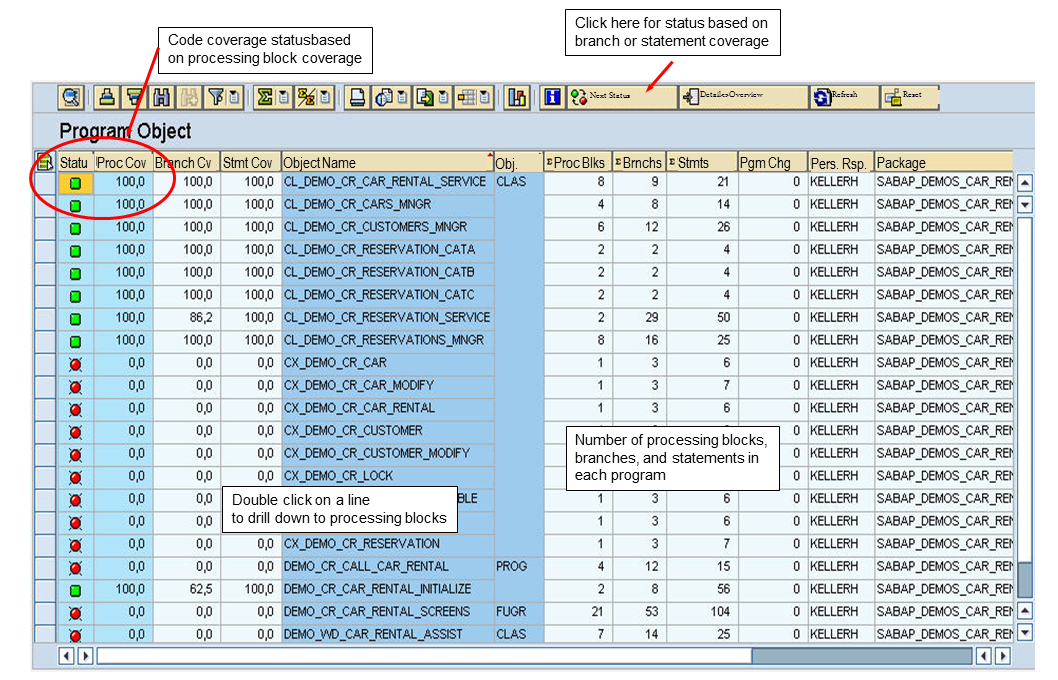
Code Coverage Status: The four left most columns in the illustration show the code coverage status of the displayed programs. As the highlighting shows, the Status icon is currently set according to the coverage statistic for processing blocks.
Clicking on Next Status re-evaluates the Status against the Branch Coverage or Statement Coverage. The code coverage standards that you set apply to all three measures.
The Detail Display always sets the initial Status according to processing block coverage.
Source Code Size: The  columns after Object Name and
Type show the size of the source code of your programs.
You can target your improvements in testing by focusing on large programs with poor
code coverage.
columns after Object Name and
Type show the size of the source code of your programs.
You can target your improvements in testing by focusing on large programs with poor
code coverage.
Drill down to the code coverage of the processing blocks of a program by double-clicking on a line in the display.
To save statistics for reporting or trend analysis, use the standard Export functions of the table display. You can then download the Detail Display in spreadsheet format.
Processing Blocks Screen: If you drill down from the entry screen, the Detail Display shows the code coverage status of the processing blocks in a program.

The processing block display can help you analyze poor code coverage in a program. You can often identify methods, functions, and form routines that have not been reached by your tests and which account for the poor coverage.
The illustration also shows the counters for current executions and cumulative executions of the code. The Coverage Analyzer also monitors short dumps that occur in the code. A dump automatically sets the Status icon to 'red'. These fields are also available in the entry screen of the Detail Display.
Double click on a processing block to drill down to the source code, where you can analyze the code coverage at the branch and statement level.
Branch and Statement Coverage Screen: Use the source code display to analyze code coverage problems in detail. You can find out exactly which branches and statements have been executed. You can determine how your tests will need to be modified or expanded to exercise code that has so far not been run.
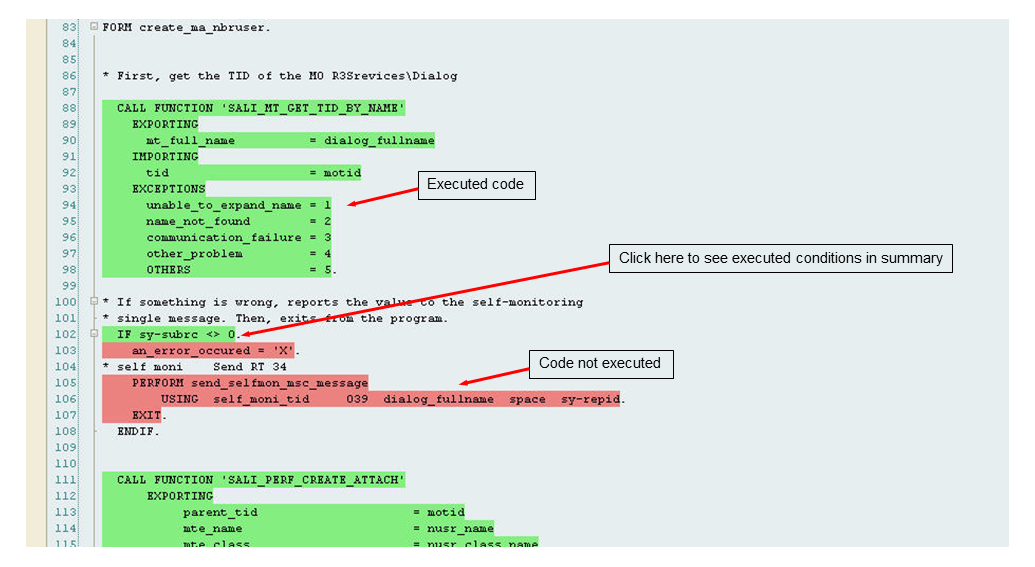
In the illustration, the error handling code after a call to SALI_MT_GET_TID_BY_NAME has not been exercised by any test.
Perhaps it is possible for you to provoke a failure of SALI_MT_GET_TID_BY_NAME by providing bad inputs.
Or you may decide that a direct test of the form routine SEND_SELFMON_MSC_MESSAGE is adequate for testing. Finally, you may find that you need to refactor the code so as to break the dependency on SALI_MT_GET_TID_BY_NAME.
- Green highlighting shows code that has been executed and measured by the Coverage Analyzer.
- Red highlighting shows code that has not been executed.
- Clicking on a line of code displays a bubble help with the index of the
statement and the number of executions of the statement.
For control statements, you will also see the conditions (true or false) to which the control statement has resolved. Note that the Coverage Analyzer records only the resolution of a control statement as a whole. You cannot track the resolution of sub-expressions within a control statement.