Assigning System Role 
With the help of the system role, you can specify whether the current system is used for local ATC checks or as a Central Check System for remote ATC checks.
Prerequisites
Context
You can choose one of the following options:
Local ATC Checks Only – This option defines that ATC is used to analyze development objects within the current system. In other words: this option refers to the classic ATC use case where the current system does not play a role in the Central Check System .
ATC Checks by Object Providers Only – This option defines that ATC is used to analyze development objects in remote systems. With this ATC use case, the current system takes over the role of the Central Check System and is automatically the ATC master system. For remote access, the Central Check System must configure RFC destinations for each system to be checked.
Remember, if you use this option, you cannot execute local ATC checks in the current system.
If you use this option, ATC findings and results can only be displayed in SAP GUI. Access using ATC tools in the Eclipse-based ABAP Development Tools is then no longer available.
Target Audience
- AS ABAP System Administrators
Procedure
- Launch the ATC administration tool (transaction ATC).
The Overview screen that appears provides in the navigation pane the additional entries Set System Role and Maintain Object Providers that are required for executing remote CVA checks.
 Figure 1: Navigation pane of the ATC transaction with additional entries
 - In the navigation pane, expand the node
 ATC Administration
  Setup
Setup  and double-click the Set System Role
entry.
and double-click the Set System Role
entry. - On the Change System Role screen, choose the
relevant option.
- Local ATC Checks Only
- ATC Checks by Object Providers
Note You can use this option only if you have a license for CVA as a separate product.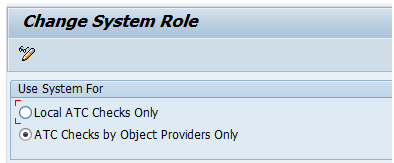 Figure 2: Setting system role for using Object Providers (in remote ATC scenario)