 Defining Virtual Receiver
You use this procedure for the external business partner to mask the names of systems within that landscape while communicating with the source business partner in a B2B scenario. Since you cannot show the names of internal systems to a business partner, you allow them to see only the names of the exposed communication components. Using virtual receiver, you can mask the system details in the message header with parameters such as Communication Component and Party.
The figure below shows how the virtual receiver is used in a B2B communication and is followed by an explanation:
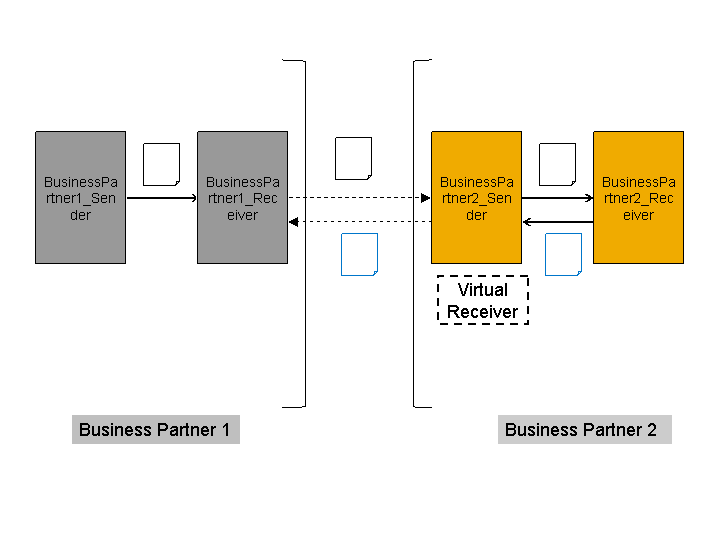
In the figure above, two integration flows are configured, one with the landscape details of Business Partner 1 and the other with landscape details of Business Partner 2, to enable B2B communication. The figure shows an instance when Business Partner 1 has already sent a request to Business Partner 2, and now BusinessPartner2_Sender system is sending a response to BusinessPartner1_Receiver system. When the message is sent across the landscape, the Virtual Receiver feature at the BusinessPartner2_Sender system masks the internal system details in the message header of the outgoing message. So, in the received message, Business Partner 1 only sees the masked names of the system details of Business Partner 2.
Prerequisites
You have created an integration flow in the Integration Directory of the external business partner and configured the systems, interfaces and channels.
Procedure
In the Model Configurator, select the sender system.
In the Properties view, choose the Virtual Receiver tab.
Choose Browse... and select a communication component.
 Note
NoteIf the selected communication component belongs to a party, the Party is filled automatically.
End of the note.Choose Save.