
 MacroBuilder Screen

Definition
When defining advanced macros, you work in a special desktop environment known as the MacroBuilder.
Use
There are two methods of accessing the MacroBuilder:
●
From the SAP
Easy Access screen, choose Demand Planning → Environment
→ Current Settings
→ Macro Workbench. For more details, see
 Macro
Workbench.
Macro
Workbench.
●
From design mode of
interactive demand planning, choose  MacroBuilder => Planning Book or
MacroBuilder => Data View.
MacroBuilder => Planning Book or
MacroBuilder => Data View.
Structure
The MacroBuilder consists of the several screen areas:
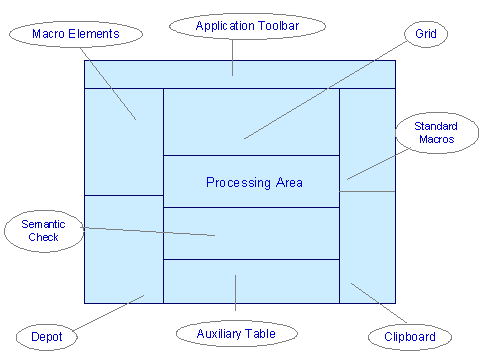
● Macro elements in a tree on the top left
● Depot with parked macros on the bottom left
Keep all macros that you are not currently editing in the depot. This improves the performance when starting the MacroBuilder.
● Demand planning table (grid) in the top center
● Processing area where you edit macros
● Macro tree with the macro tools in the bottom center
To see the attributes of any item in the tree, double-click on the item.
● Standard macros on the top right
● Clipboard on the bottom right
● Results area for semantic checks
● Auxiliary table

The last two screen areas are hidden when you open the MacroBuilder. You can make them visible by dragging the lower edge of the processing area upwards. Similarly you then drag the lower edge of the semantic check area upwards.
For more information on how to edit macros, see Definition of Macros in the MacroBuilder.