
 Integration of PP/DS Processes in BI Process
Chains
Integration of PP/DS Processes in BI Process
Chains

Use
Using the process chain maintenance functions from the Business Information Warehouse, you can define your own processes from production planning and execute them via background processing at a specified point in time.
For a general
description of the process chains, see the BW documentation
 Process
Chain.
Process
Chain.
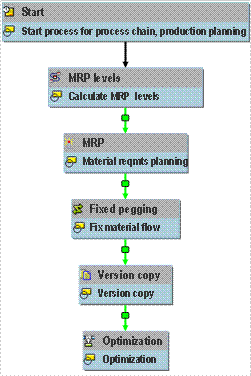
The following graphic provides an example of a process chain in production planning:
Integration
The key processes of production planning have been integrated in the process chain maintenance functionality of the Business Information Warehouse. For more information on process chains, refer to the SAP Library under SAP NetWeaver → Information Integration → SAP Business Information Warehouse → Data Warehousing → Data Warehouse Management → Process Management → Process Control.
Prerequisites
In order to use the graphic interface for process chains, each user must install the SAPGUI BW Add-on on their PC.
You have previously
created a process chain (see BI documentation
Creating Process
Chains).
Features
Process Types
The following processes are defined as process types:
· Production planning run
¡ MRP level calculation
¡ Material requirements planning
¡ Optimization
¡ Backorder processing
¡ Creation of fixed pegging relationships
¡ Finite backward scheduling
· Conversion of supply network planning into production planning
· Conversion of ATP tree structures into PP/DS orders
· Convertion of orders/purchase requisitions
However, you can
also create process types of your own (see
Implementing Your Own
Process Type).
Links
Some process types are linked to each other as standard. This means that when you choose the first process type, the other one is generated as well.
When you insert a process that is linked to other processes as standard into the process chain, the corresponding process variants are generated and automatically inserted into the chain. These variants are defaults and can be changed, adopted, or removed from the chain. If no default chains are to be proposed, you can achieve this via a system setting (see the paragraph Activities, point Disable Default Chains).
The following processes are linked to each other:
· Material requirements planning and MRP level calculation
· Optimization and creation of fixed pegging relationships, in order to fix the optimized material flow
· Finite backward scheduling and creation of fixed pegging relationships
Structure of Process Chain
A process chain comprises a start process and the individual application processes.
· In the start process, the start date/time of a process chain is specified.
· The application processes consist of a process type for which you create a variant. You then create a program variant for the variant of the process type, in which you specify the processing steps of the production planning run.
Logs
The results of the
production planning run are outputted in a log (see
Displaying the Logs for the Process
Chain).
In the log view, you have various context menu options for checking logs for the process type or the process chain. These logs are generated in the planning run.
· Display messages
An overview of the messages for the process type is displayed. Choose Process Monitor to branch to the log detail view.
· Display application logs
You can branch directly to the planning log. The data from the process type is prepopulated.
· Display log for process chain
All logs for the process chain are displayed for evaluation.
Activities
Create Variant for Process Type:
...
1. Choose Advanced Planning and Optimization → Production Planning → Automated Production Planning and Optimizatio → Maintain Process Chains.
2. Call up the process chain that you previously created.
3.
Choose  Process Types.
Display the process types for SCM – Production Planning.
4. Select a process type and insert it into the process chain with Drag&Drop.
A dialog box appears, in which you have to specify a name for the variant for the process type.
5. Choose Create in the dialog box.
A further dialog box appears, in which you have to enter a description for the variant.
6. Confirm your input.
Create a program variant for the variant of the process type, in which you specify the selection criteria and parameters for the production planning run, for example.
7. Enter a name for the program variant and choose Create.
The initial screen for carrying out the production planning run in the background appears.
8. Enter all necessary data and save the variant.
Return to process maintenance and save the data.
9. Return to process chain maintenance and adopt the process type.
10. Select the start process and choose Connect With from the context menu to connect the start process with the process type.
11. Save and activate the process chain.
12. To check or change existing process types, choose Change Variant from the context menu or double-click on the process type. You can also change the settings for the program variant in this way.
Disable Default Chains:
Wähl...
1. Choose Settings → Default Chains…, if you always want to determine yourself which processes a chain is to contain and release linked process types.
2. Select the Do Not Suggest Processes indicator.
No processes will then be suggested or generated and automatically inserted into the chain.
This setting is user-specific and applies permanently if you activate the Variable Personalization indicator in the transaction RS_PERS_ACTIVATE.