
 Embedding Room Parts in Room
Templates
Embedding Room Parts in Room
Templates

Use
The room template concept allows you to use modules (room parts) to create room templates. While the room template defines the basic structure of the room, you integrate room parts in the template to provide all the functions that you require in the rooms.
Extension for Embedding Room Parts in Room Templates
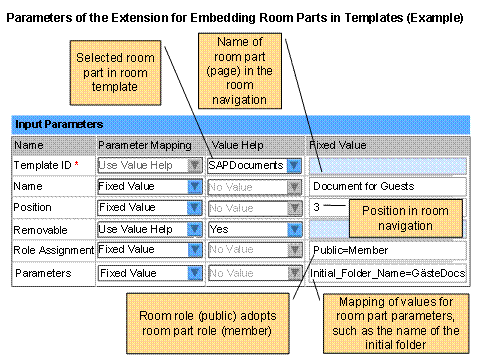
You can use the Room Part Integrator extension to embed room parts in room templates. When creating corresponding rooms, the system automatically generates the room parts specified. You define the required information and settings in the input parameters for the extension (see the graphic below).
Procedure
...
1. Open the list of extensions for the room template.
2. Add the Room Part Integrator extension.
Enter a name that corresponds to the purpose of the extension. The extension has only the ON_FINALIZE_CREATE_ROOM extension point. Therefore, the system executes the extension only after completing the room creation process.
3. Define the input parameters for the extensions as follows:
a. Template ID: Use value help to choose the required room part template.
b. Name: Enter the name that the system uses to provide the room part in the room navigation.
c. Position: Specify the position of the room part in the room navigation. (For example, "3" means that the link for launching the room part is third in the list in the detailed navigation for the room.)
d. Removable: Use the value selection (Yes/No) to specify whether or not the room administrator is allowed to remove the room part.
e.
Role
Assignment: If the room part
is embedded in a room, room roles must contain access permission for the room
part.
The following special points apply:
■ Automatic assignment
The system
assigns roles for rooms and for room parts with the same name to one
another.
If the room part contains a role that does not exist in the room, the system
automatically creates this role in the room during completion of the room
creation process.
■ Manual assignment
You can
assign the roles manually. If you choose this option, you can specify room
roles that do not yet exist in the room. Use the following syntax:
Room_role=Room_part_role
You can specify more than one role assignment in a list separated by commas,
for example:
Room_role1=Room_part_role1,Room_role2=Room_part_role3

If a room part role does not yet exist in the room or if you specify a room role that does not yet exist during role assignment, the system then creates this role in the room directly after the room creation process. Members who were already registered in the room creation wizard do not initially have permission for the room part in the new room. The room administrator must specifically assign the new role to the members.
f.
Parameters: Assign the required values to the external room
part parameters. (External parameters are manually-created parameters in the
room part template.) For example, the system creates an external parameter for
the SAP Documents room part, for which the value specifies the name of
the folder for documents.
Use the following syntax:
Parameter=Value
You can specify more than one assignment of values to room part parameters in
a list separated by commas, for example:
Parameter1=Value1,Parameter2=Value2,Parameter3=Value3