Setting Sorting and Subtotals
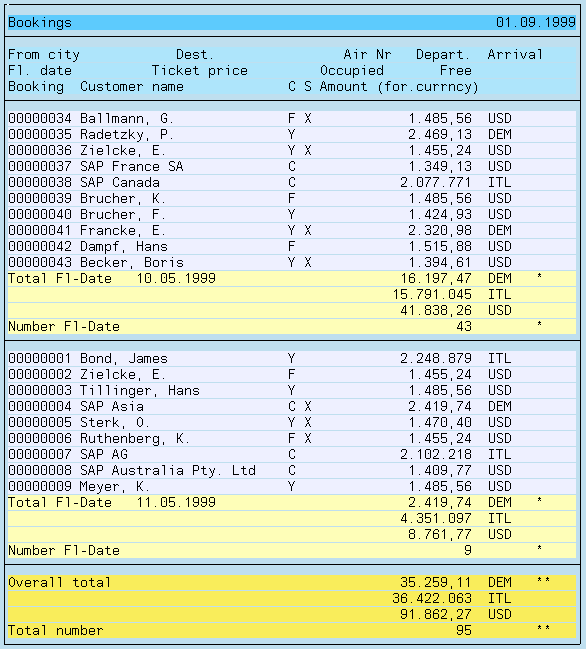
In this example, you want to generate a list containing booking information for each flight. You want to display a subtotal giving the amounts paid per booking in each case and an overall total at the end of the list.
In addition, you want to determine the number of bookings made per flight and the total number of bookings made.
Prerequisites
You have created the query G5 as shown in the section Defining Multiple Line Basic Lists.
Procedure
Copy query G5 and give the copy the name G6.
Highlight the G6 query and click on the Change function.
Adjust the title and note.
Expand the field selection using fields from the Bookings field group.
You can see below which fields are to be included in the display.
Click on Basic List.
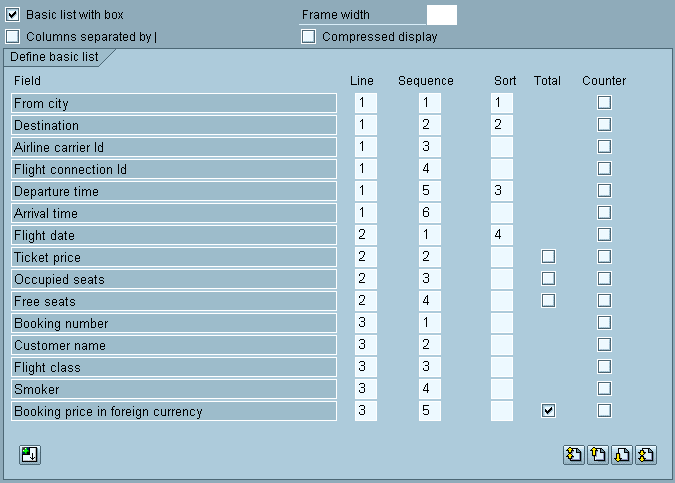
In the Basic List Line Structure screen, extend the definition of the basic list. Specify which field you want to sum. Also mark the Total checkbox for the Booking Price in Foreign Currency line.
In order to count the number of bookings, select the Payment column for the Occupied Seats field.
To display the Control Levels screen, click on Next Screen
 .
.Since you want to display a sub-total and the number of bookings for each flight, the Total and Counter columns are selected for the field Flight date.
 Note
NoteOn this screen, you cannot determine the field you want to sum or count, but only at which level you want to display a sub-total or number of bookings for the fields you have defined on the Basic List Line Structure screen for summing or counting respectively.
End of the note.Mark the Box checkbox for the Flight date field.

To display the Field Display Options screen, click several times on Next Screen
.Set the booking price to appear together with the currency.

Use the Test
 function to test the query.
A list appears with an overall total and number of bookings at the end: