 Coverage Analyzer Monitor
To display Coverage Analyzer log files, choose  Coverage Analyzer
  Administration Monitor
  in transaction SCOV, the Coverage Analyzer..
The messages in the monitor are classified according to severity with “traffic light” icons, which have the following meanings:
Light Red Error
Light Yellow Warning
Light Green Information
Should you find error messages, then you may be able to correct these automatically with the Consistency Checks function.
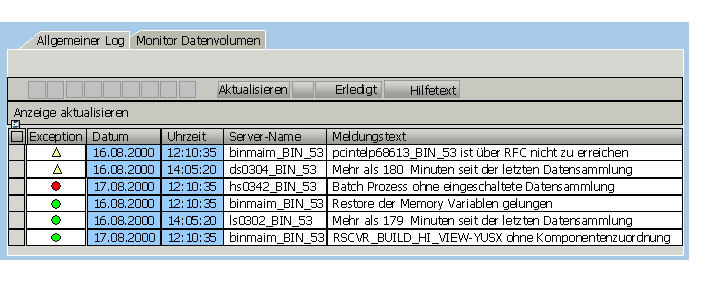
To help you respond to errors and warnings, you can call up a help text for the error or warning. Select the message and choose Help Text.
Once you have corrected the problem, you can confirm the entry by selecting the appropriate line and choosing Completed. The color of the light then changes from yellow or red to green.
The Monitor Data Volumes tab page displays the data collection activity of the Coverage Analyzer. The entries show the number of processing blocks and programs for which Coverage Analyzer data has been collected.
 Note
Note
Errors and warnings result in an appropriate message being displayed on the initial screen of the Coverage Analyzer. This screen also indicates when the last data collection run was performed.
Customizing the Monitor
On Settings screen in the Monitor Settings frame, you can customize the monitor. You can do the following:
Increase or decrease the level of detail in the monitor messages in the Trace Level field.
1, the default value, provides the least detail. Levels 2, 3, and 4 provide increasingly more detailed messages in the monitor.
Increase the number of messages that are visible in the monitor in the Maximum Entries Log field. By default, the monitor displays the 100 most recent messages. If you need to see more messages, you can increase this value.
Turn on the display of Monitor Data Volumes messages with the Maximum Entries Data Monitor field. By default, no messages are displayed in this monitor. Increase the value if you would like to trace data collection activity in the Coverage Analyzer.