
 Messages
In Web Dynpro ABAP you can create and display messages that contain important information for the end user of the Web Dynpro application. Messages are language-dependent texts that are displayed on the screen if, for example, an error occurs when an application is run, or the user has entered data in the wrong format.

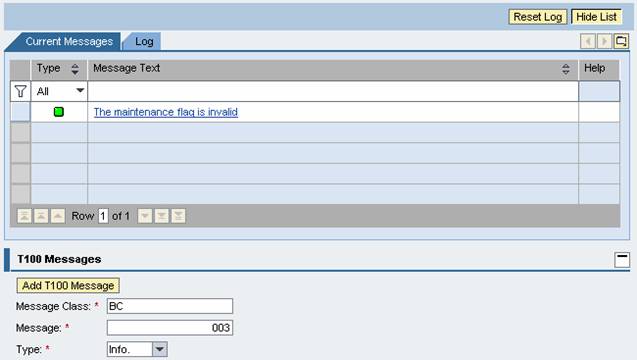
Example application (WDR_MESSAGE_AREA)
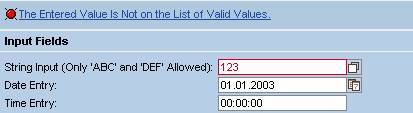
Example application for user input checks (WDR_TEST_INPUT)
For programming these user messages – such as information, error messages, and warnings – the Web Dynpro runtime of the application server ABAP provides a runtime service. The message component is part of every Web Dynpro application and be configured if required in the Settings for a Web Dynpro application. Three settings are possible for handling messages:
· Show message component if required
If messages exist, they are displayed.
Example:

· Always show message component
Even if there are no messages, the message component is still displayed in the top view.
Example:

· Display messages without the message component
Hide message component. Messages are displayed in the earlier way. This option is recommended for smaller test applications only.
User messages are displayed as links in the status bar. The user can then use the link to navigate to the user UI element that can be used to remove the error reported in an error message. The input focus is thus transferred automatically, which significantly increases the efficiency of the messages. It is also possible to display multiple messages on the screen in a table.
The messages are defined at the level of a Web Dynpro component.

The ABAP development tools include a graphics tool for  Message
Maintenance.
Message
Maintenance.
Messages in Popups
The message display in a popup works always on demand, regardless of what is set in the application.
Basic Functions
· Display:
¡ Current messages from the last user interaction.
¡ Last message with the highest weighting at the start of the message log.
¡ One counter for new messages and one counter for all messages
¡ Symbol for the weighting of each message.
¡ Time stamp for all messages.
· To navigate to the message, the user clicks on the message link.
· Messages are sorted in a tab strip by:
¡ Weighting
¡ Text
¡ Time stamp
· Input of filter criteria for:
¡ Weighting
¡ Text
¡ Time stamp
· Reset the entire message log, that is delete the current message log.
· Show and hide message log.
¡ Hide
Only the header of the last message and the message counter remains shown.
¡ Mapping
Table view of the current messages and the total number of messages.
Integration
For
application development the UI element MessageArea is
provided for positioning the message display on the screen.
The procedure to integrate messages into the message log can be found in Integration.
Example
You can find example applications in the system in components WDR_MESSAGE_AREA and WDR_TEST_INPUT.