
 Modification-Free Enhancements
In many
cases, it will be necessary to change or enhance applications delivered by SAP
or ones that already exist. Unstructured changes to the source code or layout
of an application are called modifications. Modifications can cause conflicts
when a new release of the application programs is to be imported. To avoid
such conflicts, you can create  enhancement
implementations for existing applications that were implemented using Web
Dynpro for ABAP. These enhancement implementations are independent development
objects that are managed separately from the respective original object. They
are part of the enhancement
concept that was integrated into the ABAP Workbench in the Web Application
Server for Release 7.0. The original objects they are based on are not changed
by such an enhancement and can therefore be updated without any problems
whenever there is a release change.
enhancement
implementations for existing applications that were implemented using Web
Dynpro for ABAP. These enhancement implementations are independent development
objects that are managed separately from the respective original object. They
are part of the enhancement
concept that was integrated into the ABAP Workbench in the Web Application
Server for Release 7.0. The original objects they are based on are not changed
by such an enhancement and can therefore be updated without any problems
whenever there is a release change.
Enhancement Implementations for Web Dynpro for ABAP
ABAP source
texts in a Web Dynpro application can be enhanced using BAdIs. For this
purpose, explicit anchor points (called enhancement
options) are implemented in the source code at suitable points during the
development of the application. Using these options, you can insert a
separately developed BAdI later on into the flow of the program. Each BAdI is
therefore an explicit
enhancement. An implicit
enhancement, on the other hand, does not need any advance implementation
through the application development department.
In addition to the source code enhancements described above, you can also perform enhancements to individual sections of a Web Dynpro component. For example, you can insert UI elements into a view or suppress them, or you can insert new nodes in a controller context.
Creating an Enhancement Implementation
To create an enhancement implementation, first open the required component in the object list in SE80. With double-click, you open the view or the controller in which you wish to perform the enhancement in the editor.
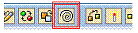
In the icon toolbar of the Web Dynpro Explorer, you will find the icon for the function “Create/Change Enhancement Implementation”.
 The function „Create/Change an
Enhancement Implementation“ will only be available to you if the
original component is available in display mode. If you switch from display
mode to change mode, the original component itself will be ready for change,
so therefore no enhancement implementation can be created or changed; the icon
is grayed out.
The function „Create/Change an
Enhancement Implementation“ will only be available to you if the
original component is available in display mode. If you switch from display
mode to change mode, the original component itself will be ready for change,
so therefore no enhancement implementation can be created or changed; the icon
is grayed out.
By clicking the icon, you open either a creation dialog for a new enhancement implementation or you get a list of all the enhancement implementations that exist for this component.
It is appropriate to start the names of
objects that you have created within an enhancement implementation with a
prefix that uniquely identifies the assignment to this implementation. This
helps to prevent name conflicts with objects of the original component.
Example:
If you create a pushbutton in the enhancement myEnhancement_1, you could call it myEnhancement_1/button_1.
As soon as you complete the dialog, you can then execute the enhancement or enhancement changes you have created.
As a rule, several enhancement
implementations, all independent of one another, can be created for a
component. The individual changes can be edited only in the implementation in
which they were created.