
 Data Binding
UI elements have properties. Each of the UI elements that can be used for the transfer or display of data contains one property that describes the value a user input or the source of the data to be displayed.
These properties can be specified at design time by specifying a fixed value or they can refer to a context element. The second option is called binding to a context element. In this case, the value of the context element is displayed at runtime or the content of the input field is passed from the screen to the context element of the view element.
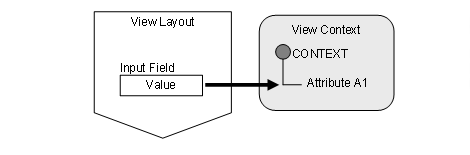
Two simple examples illustrate the principle:
 The
value of the input field (the value property) is bound to a context
attribute which is filled with the value entered by the user. It keeps the
value for further processing.
The
value of the input field (the value property) is bound to a context
attribute which is filled with the value entered by the user. It keeps the
value for further processing.
The value of the property DataSource of the UI element Table is bound to a context node.
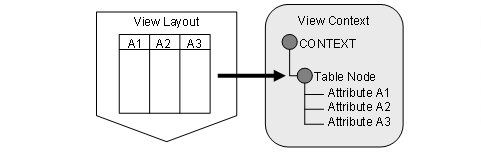
The two examples shown above illustrate two typical cases - the transport of an input value and the filling of UI elements with application data. However, many other properties of a UI element can be bound to a context element. To mention just two more examples: The length of a text field and the width of a table. Whether the value of a UI element property is specified and consequently the same in every view presentation or whether the value is bound to a context element depends on the design of the Web Dynpro component. A binding to a context element is required for properties like value or dataSource of the two UI elements mentioned above.
For a tabular list of all available UI elements including a usage description for each property, refer to the reference section of this documentation. In the context of the Advanced Concepts of Web Dynpro for ABAP, the subject of Data Binding of UI Element Properties is discussed in detail.
Setting Up Data Binding
Data binding of a UI element property is set up in the view layout. For this purpose, you use the Binding column in the properties table of the embedded UI elements. You click the button to open a dialog box which provides the context structure of the corresponding view for an element selection.
 The
properties that require the binding to a context element have a Binding button of the properties table with the following
icon:
The
properties that require the binding to a context element have a Binding button of the properties table with the following
icon:

Data Binding Using the Wizard
A wizard is available for some UI elements to make it easier to specify the design of the UI element by including the structure of the corresponding context node in the layout design. Example:
When
a table is bound to a context node using a wizard, it is not necessary to
create each table column individually. Instead the wizard provides the
corresponding context and once you selected the context node, it also provides
the available attributes. You can now select the node attributes to be
actually displayed in the table. In addition, you can change several
properties of the column elements. When the wizard operation is completed, the
required table columns in the view layout are created and the required data
binding is performed.
You start the wizard by selecting the option Create Binding in the context menu of a UI element in the tree structure below the root container.