
 Integrating an Application in the
Portal
Integrating an Application in the
Portal 
In the navigation
panel on the Portal homepage, goto  Content
Administration and open the folder portal_content.
Content
Administration and open the folder portal_content.
 You can create your application in any folder
or insert a separate folder for your application.
You can create your application in any folder
or insert a separate folder for your application.
1. Right-click the portal_content folder and choose New ® iView.
2.
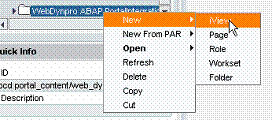
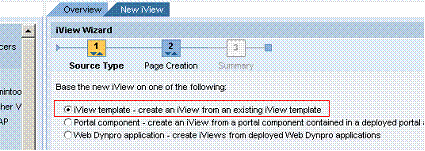
3. The iView wizard opens. Select the source application type and choose Next.
 To integrate a Web Dynpro ABAP application,
choose iView template.
To integrate a Web Dynpro ABAP application,
choose iView template.
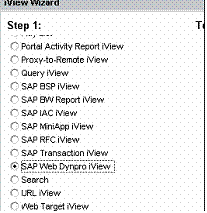
4. From the list choose SAP Web Dynpro iView followed by Next.
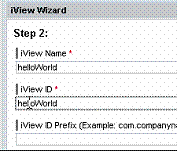
5. Enter a name for your application and choose Next.
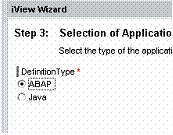
6. Specify the type, since you want to integrate an ABAP application.
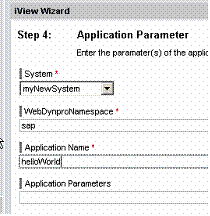
Enter the System Alias
and specify the namespace and name of the application. The namespace is
sap. You can find the application name in the ABAP system.
7. Choose Next and then Finish.
Now the application is ready to start.
Additional Settings
You can also make further settings for your application.
Size
Open the iView and choose Appearance ® Size from the dropdown list box.
The standard size of iViews is 80 pixels. This is not large enough for complex applications. Therefore, change the size to Automatic or Full Height, or increase the number of pixels.
Assigning the iView to a Role
The iView has now been created, but you can only display it after setting up the access. Since all applications in the Portal are role-based, you must assign the new iView to a role. If the application is to be called by developers for test purposes, the iView must be assigned to a corresponding role.
Carry out the following steps to assign the
iView to a role.
a. Open the role by right-clicking and select the folder in the role you want to assign the iView to.
b. Find the iView in the portal content on the right-hand side.
c. Right-click to add the iView to the role as a delta link.
d. Now your iView will appear in the menu structure.