
 Quelltext hinzufügen
Voraussetzungen
|
|
Sie haben die JSP quickCarRentalView angelegt. |


Vorgehensweise
1. Klicken auf die Registerkarte Source, um den Quelltext einzufügen.
2. Ersetzen Sie den vorgenerierten Quelltext vollständig durch:
<%@ page import="com.sap.engine.examples.util.Constants" language="java" %> <html> <head><title>QuickCarRental</title></head> <body style="font-family:Arial;"> <p style="font-weight:bold; font-size:14pt"> QuickCarRental</p> <br> <table border="0" bgcolor="D2D8E1" cellspacing="2" cellpadding="2" width="720"> <b><font color="red"><%if(session.getAttribute(Constants.CLIENT_MESSAGE)!=null)%><%=session.getAttribute(Constants.CLIENT_MESSAGE) %></font></b> <form name="wizard" method="POST" action="/QuickCarRental"> <input type="hidden" name="appAction" value="<%=Constants.ACTION_SAVE%>"/>
<tr align="center" style="font-size:9pt; font-weight:bold"> <td width="120">Pick-up Location</td> <td width="120">Vehicle Type</td> <td width="120">Drop_off Location</td> <td width="120">Pickup Date</td> <td width="120">Return Date</td> <td width="120"> </td>
</tr> <tr align="center" bgcolor="ffffff"> <td align="center" > <select name="pickupLocation"> <% for (int j = 0;j < Constants.LOCATION.length;j++) { String value = Constants.LOCATION[j]; %> <option value="<%=value%>"><%=value%></option> <% } %> </select> </td> <td align="center"> <select name="vehicleTypeId"> <% for (int j = 0;j < Constants.VEHICLE_TYPE.length;j++) { String value = Constants.VEHICLE_TYPE[j]; %> <option value="<%=value%>"><%=value%></option> <% } %> </select> </td> <td align="center"> <select name="dropoffLocation" > <% for (int j = 0;j < Constants.LOCATION.length;j++) { String value = Constants.LOCATION[j]; %> <option value="<%=value%>"><%=value%></option> <% } %> </select> </td> <td align="center"> <input name="pickupDate" type="text" size="13" maxlength="10"/> </td> <td> <input name="dropoffDate" type="text" size="13" maxlength="10"/> </td> <td align="center" bgcolor="DEE3E9"> <input type="submit" name="reservationAdd" value="Add Reservation" > </td> </tr> </form> </table> <% ArrayList reservations =(ArrayList) session.getAttribute(Constants.RESERVATIONS); if (reservations != null && reservations.size() > 0) { %> </br> <table border="0" bgcolor="D2D8E1" cellspacing="2" cellpadding="2" width="720"> <form name="reservations" method="POST" action="/QuickCarRental"> <input type="hidden" name="appAction" value="<%=Constants.ACTION_CANCEL%>"/> <tr align="center" style="font-size:9pt; font-weight:bold"> <th width="20"> </th> <th width="80">ID</th> <th width="120">Vehicle Type</th> <th width="120">Pick-up Location</th> <th width="120">Drop-off Location</th> <th width="80">Begin Date</th> <th width="80">End Date</th> <th width="100">Price</th> </tr> <% for (int i = 0; i < reservations.size(); i++) { String[] reservation = (String[]) reservations.get(i); %> <tr align="center" bgcolor="ffffff" style="font-size:9pt;"> <td> <input type="checkbox" name="check" value="<%=reservation[0]%>"/> </td> <% for (int j = 0; j < reservation.length; j++) { String value = reservation[j]; %> <td><%=value%></td> <% } %> </tr> <% } %> <tr align="center" bgcolor="DEE3E9"> <td align="left" colspan="8"> <table> <tr > <td > <input type="submit" name="reservationCancel" value="Cancel Reservation"> </td> <td/> </tr> </form> </table> <% } else { %> <br> <b style="font-size:9pt;"> No Reservations </b> <% } %> </body> </html>
|
3. Passen Sie gegebenenfalls die Formatierung der neuen Zeilen an, indem Sie im Source Editor die Funktion Source ® Format über die rechte Maustaste wählen.
4. Sichern Sie den Editorinhalt über die entsprechende Ikone aus der Toolbar.
Ergebnis
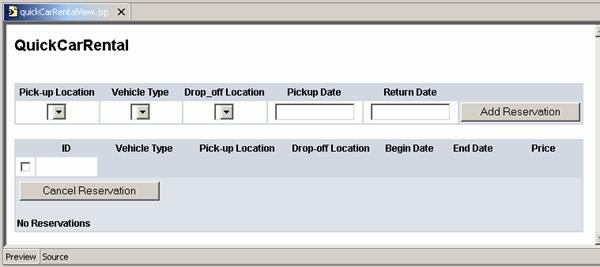
Das Developer Studio aktualisiert den Quelltext der JSP. Wenn Sie nun im JSP Editor auf die Registerkarte Preview klicken, dann erhalten Sie die folgende Layout-Vorschau:
|
|
Weiter geht’s mit ...
Servlet QuickReservationServlet anlegen