 Document Replication
This section describes the steps you need to perform if you assign images to configuration objects during knowledge base maintenance and want to display them on the Web-based user interface for interactive configuration.
General
The SAP Customer Relationship Management (SAP CRM) solution offers several business scenarios that apply the Web-based user interface for interactive configuration (such as CRM WebClient UI or CRM Product Master). The detailed system architecture depends on various implementation aspects.
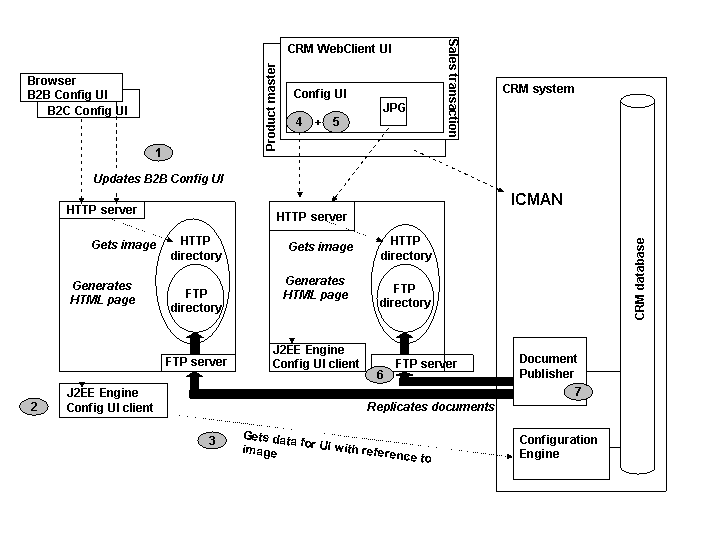
Access to images for the Web-based interactive configuration
This graphic presents an example with many applications that access the UI for interactive configuration, multiple HTTP servers (or Web servers), many clients of the configuration UI (in J2EE engines), multiple Configuration Engines, and one CRM application server.
A user of Internet Sales Business-to-Business (B2B) is working with interactive configuration; certain user actions trigger an HTTP request to the HTTP server (see point 1 in the figure) to update the configuration screen.
The HTTP server routes the query to the configuration user interface client at the J2EE server (bottom left) to generate the required HTML page. (See point 2 in the figure.)
As soon as the configuration is executed in the Configuration Engine and the new HTML page is available, the HTTP server sends the HTML page to the browser of the B2B user and provides access to any image files that are referenced from that HTML page. (See point 3 in the figure.)
The image must be located within the HTTP directory tree (see left).
Requests for other user sessions, such as one for configuration simulation, which are started in the CRM product master or from an order processing transaction (on the right side of the figure), are forwarded to another HTTP server. In this example, this is a different server than the one that is used for the B2B users. (See point 4 in the figure.)
An image for a user of the configuration simulation in the CRM product master must be located within the HTTP directory tree of the respective HTTP server. (See point 5 the figure.)
The system landscape illustrated in the figure requires replication of images from the CRM system to two different HTTP servers (see point 6 in the figure).
Static user interface documents (such as generic screen icons) are provided by the installation of the Web application (such as B2B). Runtime documents like images that are assigned to a characteristic value have to be replicated to the HTTP directories.
The Document Publisher within the CRM system replicates the runtime documents (images) that are assigned to configuration objects (like characteristic values) and stored in the knowledge base (located in the CRM database). It does not matter whether the knowledge bases that include image objects are originally maintained in SAP CRM or in SAP ERP (point 7 in the figure).
The Document Publisher applies the File Transfer Protocol (FTP) and hence requires FTP servers with FTP directories that define the replication target. The target directories have to be located within the appropriate HTTP directory trees.
The URL of the replicated documents (images) has a static part and a dynamic part. The static part is defined by a control parameter of the Web application (mimes.core.isa.sap.com).
The dynamic part consists of a fixed subdirectory path (ipc/mimes/documents) and the actual file name. File name, classification (of document type), and assignment to configuration objects are defined in the knowledge base and hence known by the Web application (by communication with the Configuration Engine).
 Caution
The target directory for the Document Publisher has to be defined manually while setting up the Document Publisher. The Document Publisher simply replicates the documents to the defined target directory; it has no control of the correctness of the target directory definition, for example, whether the target directory is accessible by the appropriate HTTP server.
 Example
The static part of the document URL (defined with the Web application parameter: mimes.core.isa.sap.com) is:
The file name of an image that is assigned to a configuration object is:
image0815.gif
In this example, the Web application derives the following URL for the image: http://host4711/b2b/ipc/root/ipc/mimes/documents/image0815.gif.

The target (FTP) directory for the Document Publisher has to be set to the directory that is identified by the directory path of the above URL:
http://host4711/b2b/ipc/root/ipc/mimes/documents
(either using the definition of the appropriate root directory of the FTP server or using a combination of the FTP root directory and explicit definition of target subdirectory during setup of the Document Publisher –see below).
Activities
Defining Variants for the Document Publisher
The Document Publisher can maintain various numbers of connection variants. Each connection variant is dedicated to a specific target (FTP) directory and used to trigger the replication activity.
To define a connection variant in the CRM back-end system:
Choose
 System
  Services Reporting
  .
.Enter the program name CFG_DOCUMENT_PUBLISHER.
Choose
Goto Variants .Enter variant name <V_Name>.
Choose Create.
Enter the following parameters for the connection variant:
Address of the FTP server: IP address of the FTP host, for example
Port (FTP port) of the FTP server (default: 21)
FTP user
Password of the FTP account
Target directory on the FTP server
Publishing mode:
I - for initial
D - for delta
In an initial publication, the content of the target directory is deleted before all documents (images) of all knowledge bases in the SAP client are published. In a delta publication, only those documents that are part of the knowledge base but are not available on the target directory are published.
With SAP ERP-based modeling, after changing an image in the document management system, you need to update the knowledge base before the new image version can be published.
Choose Attributes.
Enter a description for the variant.
Save the connection variant.
Triggering Replication Activities
There are two ways to trigger a publication for a specific connection variant:
Directly start the variant of the publication report in the reporting screen (see below).
Use job management.
Manual start of a publication report variant (for test purposes)
In the CRM system, choose
System Services Reporting .Enter the program name CFG_DOCUMENT_PUBLISHER.
Choose Overview of variants.
Choose the variant. Click Display.
Choose Execute.
Use job management to schedule periodic publication activities. In SAP CRM, choose
System Services Jobs Define Job .Define the job as required.