 Export-Import Workflow
This workflow gives you an overview of the process for exporting configured metadata (called entities) from a system to an export data file, and then importing entities from the export data file to another system.
Prerequisites
The program, SAPCAR.exe, is available on your PC at the following path on your local drive, \SAP\Mobile\bin.
 Note
Note
SAPCAR compresses data into a file and saves the file with the .car extension.
Process
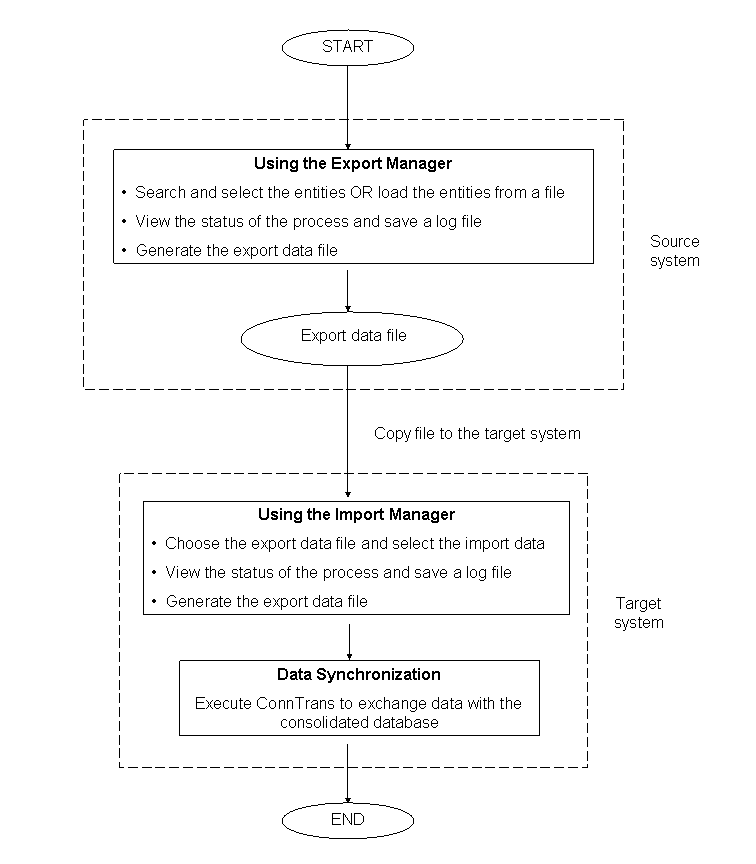
Using the Export Manager, search for, select, and add the required entities to your export basket. Then, you can generate the export data file.
In addition, you can save entities to a file, load the entities from this file to your export basket, and then generate the export data file.
For more information, see Export Manager.
Copy the export data file to the target system.
Using the copy and paste functions of Microsoft Windows, you can easily copy and paste the export data file to the target system.
Using the Import Manager, search for, select, and extract the entities from the export data file. Then, you can import the entities into the target system.
For more information, see Import Manager.
Result
When you run ConnTrans, data is transferred from the target system to the consolidated database (CDB).