 Setting Up Integration with SAP NetWeaver Business Client
Procedure
Remote System
In the WebClient UI component, assign business roles and authorizations to users. You do this in the same way as you would if you were using the WebClient UI natively.
You make the settings in Customizing for
UI Framework
underBusiness Roles
:Define Business Role
Define Organizational Assignment
Define Authorization Role
Set up roles with menu entries referencing individual WebClient UI components using the role maintenance transaction
PFCG
in the remote system, for example, SAP CRM. To create a role, proceed as follows:Start the role maintenance transaction
PFCG
and create a new role.Choose the
Menu
tab page.To define a role menu, add all the WebClient UI components that you wish to use in SAP NetWeaver Business Client (NWBC). To do this, choose
Transaction
and thenWebClient Application
.
Set up the SAP CRM system to accept SAP logon tickets issued by NWBC or another type of Single-Sign-On that is supported by the Web Application Server ABAP. For more information, see

SAP NetWeaver Business Client
 7 Security Aspects.
Leading System
Import these roles into the leading system, for example, SAP ERP, by choosing
Copy Menus

From Other Role
In Remote System
on the Menu
tab in transaction PFCG. You specify a Remote Function Call (RFC) destination to connect to the remote system. This makes the menu structure of the WebClient UI components of the remote system available in the role of the leading system that uses NWBC.Set up HTTP/HTTPS destinations from the leading system to the remote system (transaction SM59). NWBC tries to keep the protocol since many functions (for example, work protection) only work if the same protocol is used. Make sure that you have added the correct destinations. For example, if you wish to connect NWBC with HTTPS to the leading system, you must also have HTTPS available in the target system. You do this by adding an HTTPS destination in transaction SM59. If you are using a proxy or SAP Web Dispatcher, you can add this information in the destinations. For more information, see
SAP NetWeaver Business Client
5 Role Maintenance
5.9 Remote Systems.
Example
Setting Up Roles
The following diagram shows the main parts involved in the setup of roles using SAP CRM as a remote system. The NWBC system is the leading system.

Roles
SAP CRM (remote system)
You create a CRM-specific role that defines the menu structure in the SAP CRM system. This role is imported into the role used by NWBC. The NWBC role needs information about the WebClient UI components that are to be used. You cannot set up the role directly in the SAP ERP system since this system does not contain any information about the CRM business roles. Instead, you have to create a role in the SAP CRM system and import it using an RFC connection in the SAP ERP role. The purpose of the role is to set up the role menu with WebClient UI components. No other parts of the roles are used.
SAP ERP (leading system for NWBC)
You create an RFC connection to the SAP CRM system (transaction SM59) to import the role from the SAP CRM system.
You import the role that contains the SAP CRM menu from the SAP CRM system by using the RFC connection.
Connecting NWBC to SAP CRM Applications and Setting Up Runtime
The following diagram shows the main parts involved in the connection between the SAP CRM system and the NWBC system at runtime:
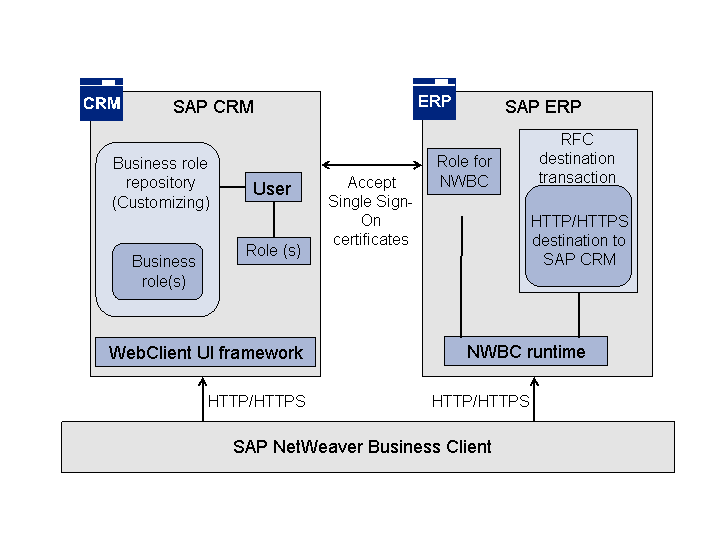
Connection Between NWBC and SAP CRM Applications at Runtime
SAP CRM (remote system)
You assign business roles and authorizations to users who use NWBC to access SAP CRM applications.
You set up the SAP CRM system to accept SAP logon tickets issued by NWBC, or another form of Single Sign-On that is supported by the Web Application Server ABAP.
SAP ERP (leading system for NWBC)
You set up HTTP/HTTPS destinations to the SAP CRM system (transaction SM59).