 Overviews of Planned Payments
You can use these overviews in the CRM WebClient UI to display data about the planned payments. The system reads and then combines selected data from various sources:
It accesses the net calculation documents in the ERP System where it calls up data for the planned payments.
It uses the accounting adapter to access contract account data and status data about payments from SAP Public Sector Collections and Disbursement (PSCD).
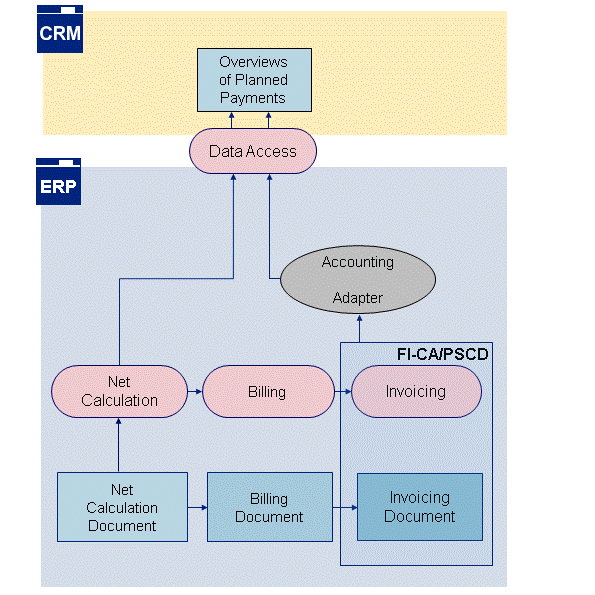
Figure: Read Data for Planned Payments Overviews
 Note
Note
You can also use the function Planned Payments
when you edit a social service plan or social deduction plan to display overviews of planned payments. The data displayed refers to the social service plan or social deduction plan that is currently being edited including its items. If a social service plan or social deduction plan has not been approved or released at this point, the system simulates a calculation of planned payments and displays these as provisional values (see also Social Service Plan and Social Deduction Plan).
If you want to use this function, you must activate the CRM business function Social Services, 2011 (CRM_IPS_4S_3
) and the ERP business function Social Services, 2011 (ERP_IPS_4S_3
).
Integration
This function determines the contract accounts receivable and payable data from PSCD using the accounting adapter.
Prerequisites
You have defined your own status descriptions for the accounting statuses
01
to04
in the Customizing settings forCustomer Relationship Management
in the CRM System under
Industry-Specific Solutions

Public Sector
Social Services
Integration
Maintain Accounting Status of Net Calculation Document
 . The system transfers these settings from PSCD to the ERP System. These settings are optional. If you do not make any changes, the system uses the predefined texts from PSCD.
 If you have also calculated your own amount in the planned payments and want to display this in the results list, you can do so using the field
Amount (Individual)
and the Business Add-InBAdI: Definition of Individual Net Amount for Planned Payments Overview
(CRM_PS_PLANNED_PAYMENTS_CNA
). This BAdI is available in the Customizing settings forCustomer Relationship Management
in the CRM System under Industry-Specific Solutions
Public Sector
Social Services
Integration
.To calculate and display the tax amounts found in the planned payments, you have defined whether the deduction type is a tax deduction. You have done this by selecting the
Tax Deduction
checkbox field in the Customizing settings in the ERP System forPublic Sector Management
under Social Services
Net Calculation
Maintain Deduction Types
.
For more information about the prerequisites, see Accounting Adapter.
Features
You can use the entry Planned Payments
in the navigation bar to access the following functions:
Search: Planned Payments
In the first step, you determine the planned payments for which the system is to display the overview. You can search according to the following criteria:
Business partner
Date
(payment period)Due date rule
Date
(due date)Payment family
If you choose
Search
, the system displays aresults list
with the planned payments that match theSearch Criteria
.You can store your search attributes by choosing
Save
and use these again subsequently. In theSave Search As
field, you enter a name. You can access these search attributes to use in a subsequent search underSaved Searches
.Results List
The system displays the planned payments it has found for your search criteria in the results list. Payments in the list are sorted according to the
billing period
and represent a net calculation unit in each case If the system determines several due dates within a billing period, it lists several net calculation units in a navigation tree. The following criteria are identical in each net calculation unit:Due date
Payment family
Payment recipient
Due date rule type
The system displays the following information in the
results list
: If several due dates exist for abilling period
, it displays the details in a tree structure for each individualdue date
.Field
Use
Billing Period
Specifies the time period for planned payments to the beneficiary.
Due Date
Defines the exact date for a planned payment.
You can navigate directly to the detailed view of the planned payments from the entry in the field
Due Date
.Payment Family
The payment family specifies the group of social services to which the planned payments belong. A payment family bundles social services that cover the same area, for example housing benefit.
Gross Amount
Specifies the total for all social services determined from social service plans. The gross amount also contains over and underpayments.
Deduction Amount
Specifies the total deduction amounts from social deduction plans or rule-based deductions. The value is positive for example if excess tax that has been calculated is to be refunded.
Net Amount
Displays the total amount for all social services taking account of all decision and rule-based deductions including tax deductions.
Accounting Status
The accounting status specifies the current status of the planned payment in accounting. The system transfers the status using the accounting adapter from PSCD.
Invoicing Status
The ERP System transfers status information for the net calculation documents to the CRM System using the Business Add-In
BAdI: Determination of Accounting Status of NDC and Items
(PSSCB_NET_RESULTS_STATUS
)Other Deduction Amount
Specifies the total decision and rule-based deduction amounts excluding tax deductions. The system displays the tax deduction separately in the
Tax Amount
field. The total from theother deduction amount
andtax amount
produces thededuction amount
. The deduction amount is displayed with a negative leading sign.Overpayments Amount
Specifies the total overpayments that are relevant for the respective period. The overpayment amount is displayed with a negative leading sign.
Regular Payments Amount
Specifies the total periodic payments in the planned payments.
Underpayments Amount
Specifies the total underpayments that are relevant for the respective period.
Tax Amount
Specifies the total tax deductions. The system totals the amounts for those deductions for which the
Tax Deduction
checkbox has been selected in the deduction type Customizing settings.The deduction amount is displayed with a negative leading sign. The value is positive for example if excess tax that has been calculated is to be refunded.
Due Date Rule
Specifies the due date rule that the system has used to determine the billing period and due date.
Currency
Specifies the currency in which the social service is calculated and paid.
Payment Recipient
Specifies the social service beneficiary.
You can navigate from the entry in the field
Payment Recipient
to thePrivate Account
view.Individual Net Amount
You can for example use this optional field for net amounts that you have defined individually. If you want to use this field, you can use the Business Add-In
BAdI: Definition of Individual Net Amount for Planned Payments Overview
CRM_PS_PLANNED_PAYMENTS_CNA
in the CRM System. You also define the field names here. Example
Overpayments made are entered in the net amount as deduction items. However, you do not want to include overpayments in the net amount and instead want to display these separately. You use the BAdI to calculate a net amount that does not include a deduction for the overpayment.
End of the example.You can combine the columns in the results list according to your requirements using the function
Personalize
. The following columns are displayed as a default:Billing period
Due date
Payment family
Gross amount
Deduction amount
Net amount
Accounting status
Invoicing status
List of Planned Payments
If you choose a
due date
in the results list, the system displays an overview of the payments that are planned for this date. In theGeneral Data
section it displays an additional overview of data from the results list and thepayment frequency
.In the
list of planned payments
, the system displays the individual items for the planned payments with the following information:Field
Use
Item Category
Specifies the category for a gross payment item in the list of planned payments. The following item categories are available for Social Services:
Payments
Regular payment
Underpayment
(extraordinary payment)Overpayment
(extraordinary payment)
Deductions
Third-party deduction
Allocated deduction
Withholding deduction
You can navigate directly to the detailed view of the payment item from the entry in the
Item Category
field.Description
Describes the payment family to which the planned payment belongs.
Amount
Specifies the individual amount planned for an item.
Accounting Status
Specifies the current status of the planned payment in accounting. The system transfers the status using the accounting adapter from FI-CA and PSCD.
Benefit ID
Specifies the technical key for the social benefit.
Deduct-to Party
Specifies who is to receive the payment for a decision or rule-based deduction determined.
Alternative Payee
Specifies a payee who receives a social benefit as a substitute, for example if the beneficiary does not have their own bank account.
Case
Specifies the number and description of the social case for which the current planned payment belongs.
You can navigate directly to the overview of the associated social case from the entry in the
Case
field.Decision ID
Identifies a decision-based deduction using a unique key. You can use the key in the
Decision ID
field to navigate directly to the associated decision.A rule-based deduction is not based on an individual decision, meaning that no
decision ID
is available here. The system does not therefore display any entry for rule-based deductionsCurrency
Specifies the currency in which the social service is calculated and paid.
You can combine the columns in the results list according to your requirements using the function
Personalize
. The following columns are displayed as a default:Item Category
Description
Amount
Accounting Status
Details: Payment Item
From the
list of planned payments
, you can use theitem category
to navigate directly to the detailed view of the payment item. In theGeneral Data
section, you can view an additional overview of data from thelist of planned payments
. UnderDates
, the system also displays the relevant dates for the planned payments and underAlternative Payee Information
, it displays theiraddress
oraccount number
and thepayment type
.You can access the following transactions from this overview:
By choosing
Payment Recipient
you access thePrivate Account
view.By choosing
Benefit ID
you access theBenefit Decision
view.By choosing
Case
in theCase: Details
view, you access the detailed view of the current case.