 Graphical Display for Distribution of Attribute Combinations
To use this function, you must activate the business function Segmentation of BW Data Using Business Warehouse Accelerator (CRM_MKT_SEG_BWA
).
As well as displaying the distribution of individual attributes, you can also display the distribution of key figure attributes in connection with one or two additional attributes, in a multidimensional distribution graphic. There are three different layouts available to you for this. Each attribute combination is displayed in a box, which appears larger or smaller depending on the number of business partners to whom this attribute combination applies. This means that you can easily see, for example, how many business partners with sales over 1000 USD have bought products from the product category 'Electronics' in the last 12 months, and whether more or fewer business partners have bought products from product category 'Appliances'.
Prerequisites
The segmentation model must have the usage
High Volume Segmentation (BWA)
.The attribute list must have the category
High Volume Segmentation (BWA)
.The attributes whose combination is to be displayed must come from the same data source.
Features
It is possible to have up to three levels of filters. For each level you select the filter, whereby the attribute on the first level must be a key figure.
You can drag the boxes to the segmentation model using drag and drop, and so use the corresponding filter combination for segmentation.
Free form entry of filters
If you have not yet defined a filter for the key figure attribute, and you call the multidimensional distribution graphic, you go directly to a table in which you can define filters. Using
Propose Filters
, you can allow the system to propose up to three filters, which you can then change.If you drag one of the resulting new filter combinations (one box) from the graphic to the segmentation model using drag and drop, the system automatically creates the filter used within it.
Even if filters are already available for the key figure attribute, you can also define free filters for the graphic. To do so, choose
Define New Filter
(arrow icon on the right, above the filter selection).By adjusting the filters and checking the effect on the distribution graphic, you can experiment with the distribution, which facilitates the creation of suitable segment sizes. You do not run the risk of creating segments with too few or too many business partners.
The runtime for the creation of the graphic can be quite long, depending on the selected parameters. However, you can minimize the dialog box and carry on working in the staging area.
This function is not supported for marketing attributes.
 Note
Note
Note that the filter definition for key figures (for example, revenue, order volume) can lead to inaccurate results due to rounding problems or conversion problems. This is especially the case with queries regarding equality or inequality (for example, 'Order Volume = 5,000 USD').
Activities
You call the distribution graphic in the menu of a key figure attribute by using the menu option Display Multidimensional Distribution
.
We recommend keeping the name of the filter short, so that the result is easy to see.
Example
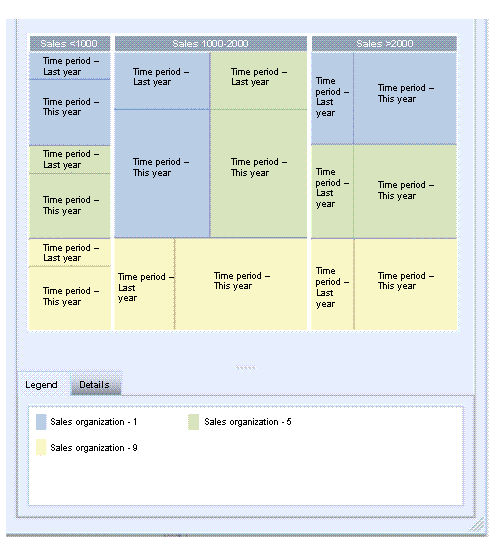
The distribution graphic shows the distribution of attributes for revenue, time period, and sales organization. At a glance, you can see that your company has done between 1000 and 2000 USD worth of business with most business partners, in all three sales organizations. In all sales organizations, the number of business partners with whom your company did business has increased this year in comparison with last year, in all reporting intervals.