 Live Rates Planning
You use this process to plan, calculate, and post budget amounts in funds management for trade promotion activities.
Prerequisites
You have activated the business function Claims and Funds Management (CRM_CF_1
).
You have completed the activities in Customizing under 
Customer Relationship Management

Trade Promotion Management
Live Rates
 .
.
Process
The live rates planning process is illustrated in the following figure:
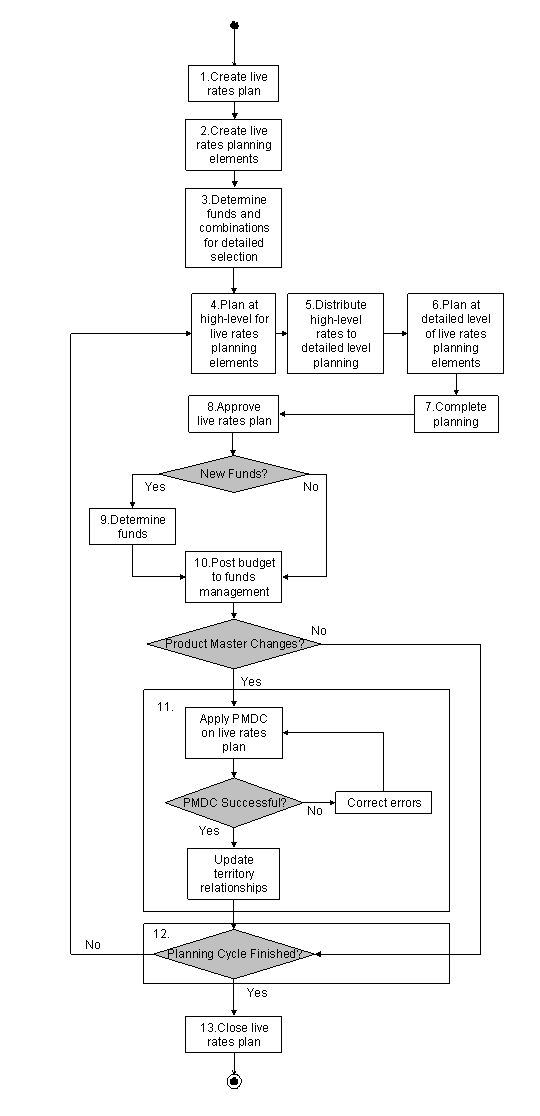
Live Rates Planning Process
You create a live rates plan.
You create live rates planning elements when you run the report
Live Rates Planning Element Creation
(RCRM_FM_LRTP_CREATE_ELM
).You run the report
Live Rates Fund Determination
(RCRM_FM_LRTP_FUND_DETERMINE
) to identify the funds to post the calculated budget amounts to and to create the combinations of account hierarchy node and product category used for the detailed planning selection.You can perform high-level planning for live rates planning elements.
You distribute the high-level planning amounts to the detailed planning combinations using the planning function
Distribute Rates to Detail Level
.You perform detailed planning for live rates planning elements.
You complete the planning of the live rates planning elements.
You set the status of live rates planning elements to
Completed Planning
once you have completed the live rates planning.You approve the live rates plan.
You set the status of the live rates plan to
Approved
to indicate that the planning information is complete and can be posted to funds management. You can only approve the live rates plan when the status of each live rates planning element is set toCompleted Planning
.Optional: If you add new funds, you run the report
Live Rates Fund Determination
again.You run the report
Live Rates Posting to Funds Management
(RCRM_FM_LRTP_POSTING_TO_FM
) to post the calculated budget amounts to funds management.Optional: If you have changed the product master data, you can run the report
Live Rates Pertinent Master Data Changes
(RCRM_FM_LRTP_PMDC
).If the report is successful, update the territory relationships by running the report
Update Territory Relationships
(CRM_TERRMAN_PROC_REL
).If the report is not successful and there are errors, run the report
Live Rates Pertinent Master Data Changes
again until there are no more errors. Then update the territory relationships.
Optional: If you need to adjust your live rates plan, set the live rates plan status to
In Planning
to start a new planning cycle.You close the live rates plan.
You close the live rates plan when you complete the planning cycle. You choose a reason to explain why you are closing the live rates plan.
More Information
Live Rates Planning Element Creation
Key Figure Planning for Live Rates
Live Rates Pertinent Master Data Changes
Live Rates Posting to Funds Management
For more information on updating territory relationships, see Customizing for Customer Relationship Management
under Master Data
Territory Management
Update Territory Relationships
.