 Working with Filters and Segments in the Graphical Modeler
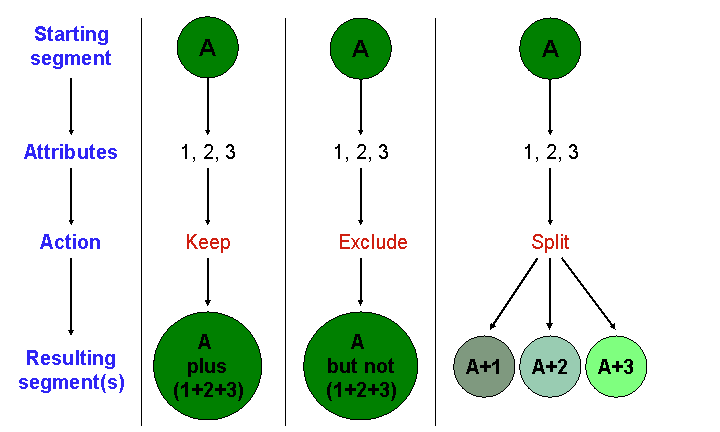
When you drag one or more filters with the same category to one of the existing segments in the staging area, the functions Keep, Exclude, and Split appear. You select the required function by releasing the mouse button.
Features
Keep
This function enables you to add additional criteria to a segment, to retain these business partners within the resulting target group.
 Example
Age 25 - 30 and (keep) gender “Male”. Only business partners matching both filter criteria are selected.
 Note
Note
By making a setting in Customizing, you can also change the standard system so that steps are combined. This means that if you drag several attributes from a data source to a segment using the function Keep
, and then choose Edit
for this segment, the dialog box Filter Details
shows that attributes below the keep step are linked by AND. Combination is only possible if attributes belong to the same data source and the AND condition applies between attributes and the OR condition applies in an attribute for the underlying and new step.
If an attribute already exists in a step, the system generates a new step. Example: The system generates two steps if you have already selected the attribute Country
= Germany
and then choose Country
= United Kingdom
as the next step.
Change the standard system in Customizing for Customer Relationship Management
under 
Marketing

Segmentation
General Settings
General Settings for Segmentation
 . Choose the value
 Yes
for the parameter Combine "Keep" in One Step
. For more information, see the field help.
Exclude
Enables you to specify a filter as an exclusion criterion, meaning that business partners with this filter criterion are not contained in the target group.
Example
Age 25 - 30 not (exclude) gender “Male”.
This target group would therefore contain only female business partners, or business partners for whom the gender is not specified.
Split
You use this function to create multiple segments, by splitting a segment using two or more different filter criteria.
Example
You run an online CD store, and wish to send a mail shot to all your category A (frequent buyer) customers in the 25-34 age range, who like either pop, classical, or jazz.
You have created a segment consisting of the following filter criteria:
Age: 25-34
Number of CDs purchased (last month): 3-7 or more
These two filter criteria apply regardless of which category of music a customer prefers.
Under “Music Category”, you now select all three filter criteria “Pop”, “Classical”, and “Jazz”. You drag these filters onto the segment and choose Split
. Following this action, you now have three segments as follows:
Age: 25-34 – Number of CDs purchased (last month): 3-7 or more - Music category: Pop
Age: 25-34 – Number of CDs purchased (last month): 3-7 or more - Music category: Classical
Age: 25-34 – Number of CDs purchased (last month): 3-7 or more - Music category: Jazz
Note
You can use the
Split
function with one or more filters. For multiple filters, a segment is created for each one. If you only use one filter, one segment is created that matches the filter criteria and another is created that does not match the filter criteria.If you use the function
Split
, for example for the object filter = XY for the initial segment with business partners, you receive the following two segments:Segment that only contains business partners without objects with the description NOT XY
Segment with business partners to which object XY is assigned
Note
By making a setting in Customizing, you can change the standard system so that filters from the higher-level segment are transferred if they belong to the same data source and the condition AND is met between attributes and the OR condition is met within an attribute. The filter for the segmentation basis is also transferred in the first step.
Change the standard system in Customizing for Customer Relationship Management
under Marketing
Segmentation
General Settings
General Settings for Segmentation
. Choose the value Yes
for the parameter Add Filter of the HL Step in During Split
. For more information, see the field help.
Combination Options Between Filters and Segments
In this section, you can see which combinations of filter and segment are possible based on whether the business partner category is Person, Organization, Relationship, or Unknown. You can also see how the business partner category of the segment changes, and which new segments exist (Split function). This depends on the functions described above.
Combinations of filters and segments with the same business partner category are always permitted and the segment category does not change.
Combinations of filters and segments with the following business partner categories are never permitted:
Organization and Person
Organization and Relationship
Organization and Unknown
Combinations of one or more filters and segments with the business partner categories Person and Relationship are permitted. Category of the segment or the categories of the new segments are as follows:
Keep
Filter (Person) and Segment (Relationship): Relationship
Filter (Relationship) and Segment (Person): Relationship
Exclude
Filter (Person) and Segment (Relationship): Relationship
Filter (Relationship) and Segment (Person): Person
Splitting for One Filter
Filter (Person) and Segment (Relationship): Two new segments with category Relationship
Filter (Relationship) and Segment (Person): Two new segments with category Person and Relationship
Splitting for Multiple Filters
Filter (Person) and Segment (Relationship): A new segment with category Relationship for each filter
Filter (Relationship) and Segment (Person): A new segment with category Relationship for each filter
Combinations of filters and relationships with the business partner categories Unknown and Person, or Unknown and Relationship are permitted Category of the segment or the categories of the new segments are as follows:
Keep
Filter (Unknown) and Segment (Person): Person
Filter (Unknown) and Segment (Relationship): Relationship
Filter (Person) and Segment (Unknown): Person
Filter (Relationship) and Segment (Unknown): Relationship
Exclude
Filter (Unknown) and Segment (Person): Person
Filter (Unknown) and Segment (Relationship): Relationship
Filter (Person) and Segment (Unknown): Unknown
Filter (Relationship) and Segment (Unknown): Unknown
Splitting for One Filter
Filter (Unknown) and Segment (Person): Two new segments with category Person
Filter (Unknown) and Segment (Relationship): Two new segments with category Relationship
Filter (Person) and Segment (Unknown): Two new segments with category Person and Unknown
Filter (Person) and Segment (Relationship): Two new segments with category Relationship and Unknown
Splitting for Multiple Filters
Filter (Unknown) and Segment (Person): A new segment with category Person for each filter
Filter (Unknown) and Segment (Relationship): A new segment with category Relationship for each filter
Filter (Person) and Segment (Unknown): A new segment with category Person for each filter
Filter (Person) and Segment (Relationship): A new segment with category Relationship for each filter