 Working with the Calendar
You use the integrated marketing calendar for a quick overview of certain marketing projects, or to work on your marketing projects.
Prerequisites
The calendar is highly configurable in terms of what is available on the UI, so ensure that you have completed the following:
-
Settings with respect to the calendar layout and functions
-
Role-specific settings
-
Implementation of the necessary Business Add-Ins
You do this in Customizing for Customer Relationship Management
, by choosing 
Marketing

Marketing Planning and Campaign Management
Integrated Marketing Calendar
 . The documentation for each activity describes the effects of the settings on the UI.
Features
The marketing projects are represented in the form of horizontal bars on a time axis.
Once you have started the calendar and performed a search, the marketing projects (campaigns, promotions, and so on) are shown in the form of horizontal bars on a time axis. They can be accessed or edited by other users. You can make changes to the bar, such as extending the length of a marketing project by stretching the bar using the mouse. However, as soon as you move or make changes to a bar, they switch to change mode and cannot be changed by other users. All marketing projects you change in a session remain locked until you explicitly save your work area.
The following graphic shows you the various screen areas of the calendar, that is, the search area, calendar control elements, calendar structure, main calendar, and split calendar or template area:
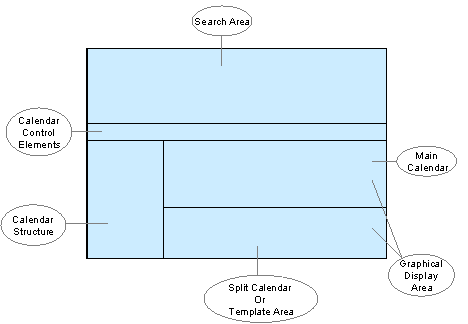
Integrated Marketing Calendar Layout
The main and split calendar or template area can also be denoted as the graphical display area. The sections below describe what is available in each screen area.
Search Area
-
Carry out searches using the advanced search, and filter search functions.
-
Display search results in the main calendar, or split calendar, or the template area.
If you choose
List Display
, all the marketing projects of the search result are displayed in a tabular format. ClickMarketing Project ID
to navigate to the Overview Page of the corresponding marketing project.
Calendar Control Elements
You can use the options available in this area, to change the way information is displayed in the graphical display area. For more information, see Calendar Control Elements.
Calendar Structure
The structure has an impact on how marketing projects are displayed, considering views and grouping rules in the calendar area. Change the view of the calendar structure depending on the perspective of marketing activities you want.
Main and Split Calendar
There are many options you can use within the graphical display area when working on marketing projects: by double clicking project bars, by using the context menu available with each marketing project, and so on. You can quickly create, copy, delete, or reschedule your marketing projects, by drawing, dragging, or deleting the bars in the graphical display area. For more information, see Main and Split Calendar.