
 Assigning Target Transactions

Use
You can assign a whole range of (meaningful) transactions to business object types, which can then be called using Drag&Relate. These transactions can be described as methods of the business object. You can also assign a target transaction to more than one business object type. The transactions that you select depend on the scenarios that you want to support with Drag&Relate, and that are useful from a business perspective.
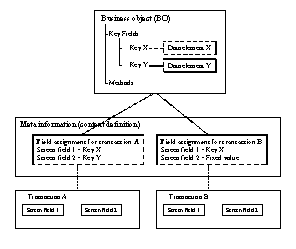
The context is added by assigning the business object key fields to the input screen fields of the target transaction. In this way, the chosen target transaction becomes relate-enabled. You can have the system transfer a key value, a fixed value, or a system variable when you assign field values to a transaction. This specifies the value that the system passes on to the portal when the user performs a query.
From a user perspective, relate-enabled means that when a link is dragged to a transaction-based iView, the selected target transaction is started with all the parameters that are uniquely connected with the link (= parameters of the target transaction are set by the business object).
Setting Parameters of the Target Transaction Using a Function Module
For target transactions that are to be processed separately, for example because the initial screen is missing altogether, you can have the system call a function module instead of starting the transaction. This function module is assigned to the target transaction.
Procedure
...
1. Start Transaction SPO0.
2. To change the definition of an existing object type, choose the relevant object type in the Object type field using the F4 help or by typing the exact name in this field.
3. Choose Display to the left of the field.
4. Switch to change mode by choosing Display/change.
5. Choose the Transactions tab.
6. A table is displayed in which you can enter the transaction codes for your chosen target transactions that are assigned to the business object type and that are to be relate-enabled.

If the business object already has dialog methods (for example, Display, Edit, Delete), these provide a sensible starting point for the assignment.
7. To specify that the transaction is to be called using a function module, select the Function module column and specify the function module.
8. The button in the first column of the table takes you to the Maintain field assignments menu. Here you specify for each target transaction the fields of the business object type with which the screen input fields of the target transaction are to be automatically set (parameters) for Drag&Relate. You can also specify fixed values.
9. To define a search help that defines parameters for the target transaction, enter the search help attachment with the key in the second column. Enter the name of the "target object type" and the key field (for this business object type). In the last column, enter the name of the search help and the search help parameters. You can also specify fixed values here (as for Maintaining field assignments).
A collective search help must have been attached to the input field of the transaction. The search help attachment provides the business environment of an object for Drag&Relate.

If a search help is specified for the corresponding input field Delivery in transaction Display delivery, and the parameter can be specified with the customer (that is, Deliveries for customers), you can call this search help with a specified parameter. This search help must be part of a collective search help that is assigned to the input field Delivery.
10. You can test the transaction call. To do so, select the appropriate icon in the third column of the table.
11. Save your entries.
Result
You have assigned transactions to the business object types, which can then be called using Drag&Relate.
If you have finished maintaining the object metadata, you can continue by activating the metadata.