 Filing and Uploading Documents
You use this function to transfer documents for a selected case to Records and Case Management (RCM) during an investigation that has not yet been completed. You can transfer documents:
From a local hard drive
Or from CRM Content Management
Filing your documents in RCM allows you to prevent documents from being modified and means that they are protected by an authorization concept.
Integration
In CRM Content Management, you can create documents for every entity in a case or for the actual case. You can also assign the same document to these entities and then edit this document. In contrast to documents in Content Management, documents that are entered in the investigation record for Records and Case Management are protected from all processing. The following graphic explains the connection between the different storage locations for your documents:
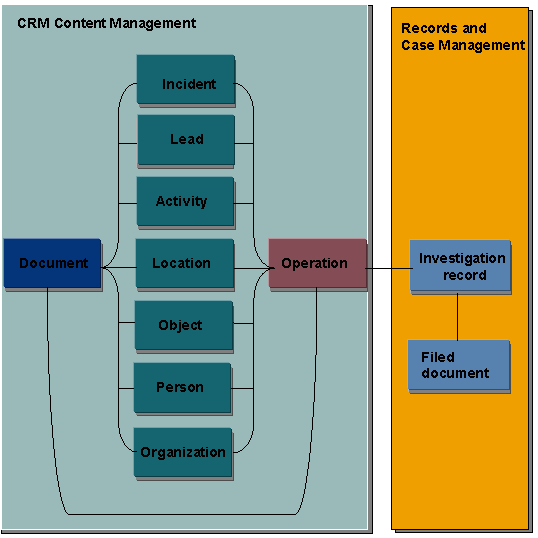
The system creates an entry in a
filing log
for the load transactions in RCM described in this document that you can access using an assignment block with the same name. This contains information about when which user (with the roleEmployee
) uploaded a document to RCM.Deleting documents requires additional authorizations. Depending on your system configuration, these can for example be restricted to an administrator.
Prerequisites
The prerequisites that apply to usage of records in ICM also apply here. You have activated the business add-in (BAdI CRM_ICM_REC_DOCUMENT) that the system uses to perform the format conversion for your documents. For more information, see Usage of Records in Investigative Case Management.
Before filing or uploading documents, you have saved the associated case.
Features
The following graphic shows the transfer options for documents:

In the assignment block
Attachments
you can use the functionAttach
to load documents from a local hard drive to CRM Content Management. Example
You can transfer documents that have been created on decentralized computers during an investigation, such as a local document about an incident or the identikit for a suspect.
End of the example.In the assignment block
Attachments
you can use the functionWith Template
to generate documents in CRM Content Management from a document template. ExampleYou can for example generate and edit an investigation-relevant log.
End of the example.You can use the function
File Documents
to load documents from CRM Content Management to Records and Case Management. You use this function once an investigation has been completed. You can transfer documents for a case or documents at individual assignment block level to the investigation record.During filing, the system displays whether a document has already been filed in the investigation record and where ithas been filed.
In the standard version, the system specifies the entity as the
origin
for this load process in the filing log. You can change this system response using a BAdI (CRM_ICM_REC_DOCUMENT).
ExampleYou can transfer documents that are relevant for the court. You can for example file evidence about a convicted criminal in the investigation record.
End of the example.You can use the function
Upload
to transfer documents from a local hard drive directly to Records and Case Management.Before transferring documents, you must enter a
name
for the document. You can also enter an additionaldescription
and akeyword
.Following the transfer to the central file, the system retains the local copy, however the document that is transferred to RCM is the only document that is relevant to the law enforcement process.
The system enters
Upload from Hard Drive
in the filing log as theOrigin
for this load process.
ExampleYou can transfer documents that you have created locally independently of an entity for the case (for example indepdendently of a lead) and that are relevant for the legal law enforcement process.
End of the example.
Activities
Upload Document to RCM
In the assignment block
Investigation Record
, chooseEdit List
.Select a Model Node, and choose
Upload Document
.On the next screen enter a name and optional attrributes, select a local file from the local hard drive using a file path and then choose
Upload
.
Load Document to Content Management
In the assignment block
Attachments
, chooseAttach
.Select a local file on the next screen that appears and then choose
Attach
.
File Documents in the Investigation Record in RCM
You have the following options:
To transfer the attachments assigned to a case, choose

More

File Documents
 .
.To transfer the attachments assigned to an entity in the case, in the assignment block for the entity (for example under
Leads
) chooseEdit List
. Select an entry and chooseFile Documents
.
The system displays a screen where you can select attachments that you want to transfer to the investigation record. Select a model node in the investigation record as a target location and then choose
File
. The system displays the attachments in the overview tree for the investigation record in the filing log.