 Creating Web Dynpro Applications Using Forms
You can create a new form, including the form interface, directly from the Web Dynpro Explorer of the Development Workbench. You can also integrate an existing form from the system into your Web Dynpro application.
In each view, you can integrate a form in every view in any component, though it can sometimes help better integrate the form if you create a special view for it. Note however that only one interactive form can be displayed for each browser window.
The process is the same for creating and using both interactive and print forms.
Procedure
To create a new form
Create a view in the Web Dynpro Explorer or select a view in which you would like to embed a form.
In the view context, create the node with attributes that will contain the form data.
Insert an InteractiveForm UI element into your view.
Give the templateSource property a name which has not already been given to an existing form in the system.
A dialog box appears Formular-Schnittstelle spezifizieren.
Specify the name of a form interface that does not already exist in the system and select Context.
A dialog box for the selection of the context nodes to be bound to the dataSource property appears.
Choose the context node created in step 2.
A new form interface and a new form are generated based on the Web Dynpro context that you selected.
The Form Builder is opened and you can create your new form.
More information: Designing Forms with the Form Builder
Choose the option ZCI Layout as Layout Type on the Properties tab of the Form Builder and press Entry to confirm the message shown in the status line.
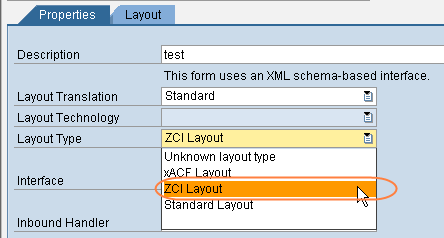 (Layout Type ZCI Layout)
On the Layout tab in the Form Builder you can insert the ZCI script by using
 Utilities
  Insert Web Dynpro Script
  .
.Afterwards you can see the entry ContainerFoundation_JS in the Hierarchy View in the Form Builder.
 Note
NoteIf you are using the EhP1 Adobe Document Services, you do not have to insert the script; it is inserted automatically. Adobe Product Services inserts the script into the PDF document automatically as of this Release.
End of the note.Compile your form using the UI controls from the Web Dynpro Native library:
 (Web Dynpro Native Library)
Save and activate your form.
Once you have finished designing the form, switch to the editing screen for the Web Dynpro View.
The dataSource property of the InteractiveForm UI element has now been set according to your specifications.
Specify whether the form is a print form or an interactive form.
If it is a print form, deactivate the enabled property of the InteractiveForm UI element.
If it is an interactive form, activate the enabled property of the InteractiveForm UI element.
To Use a Form that Already Exists in the System
You can also integrate a form that already exists in the system into your Web Dynpro Application. Based on the interface of the selected form, a context node with attributes can be created automatically for the UI element InteractiveForm. The dataSource property of the UI element is automatically bound to this context node.
Create a view in the Web Dynpro Explorer or select a view in which you would like to embed a form.
Insert an InteractiveForm UI element into your view.
For the templateSource property, enter the name of the form that already exists in the system.
A dialog box appears and informs you that a context node that matches the form interface can be generated and bound to the dataSource property.
Confirm the prompt in the dialog box.
Specify whether the form is a print form or an interactive form.
If it is a print form, deactivate the enabled property of the InteractiveForm UI element.
If it is an interactive form, activate the enabled property of the InteractiveForm UI element.
You may have to update the template used.
The procedure is described in SAP Note 956074.
More information: Checking and Updating Form Layouts
Editing the Web Dynpro Context or the Form Interface at a Later Stage
If you determine during the development of your form that more data or less data is required in the form, then you should adjust it accordingly to the context bound to the dataSource property. The form interface can then be regenerated: The form interface is adjusted by selecting the Generate XML Schema function.
You can also regenerate the form interface by navigating forards to the templateSource property of the InteractiveForm UI element.
Note
Note however, that the form interface can also be used for other forms and check possible dependencies before changing an interface.
The context bound to the dataSource property can also be created afterwards using the Generate Context function of the form interface.
Result
The PDF document is displayed in your Web Dynpro application in an Adobe Reader Browser Plugin. The usual Adobe functions are available using the corresponding buttons, for example print and save as a copy.
If you want to further process the PDF document that was created by the system from the form (templateSource) and the relevant data (dataSource) in your application (for example to save it to the database and archive it), you have to bind the pdfSource property to a context attribute of type XSTRING. Note the Performance Aspects for interactive forms.
Alternatively, forms can also be edited independently of Web Dynpro applications using the Form Builder (transaction SFP). For information on creating forms and how to handle the Form Builder, see Form Design with the Form Builder.