
 Schritt 1:
Creating and Editing a Component
Schritt 1:
Creating and Editing a Component

In this step you first create a new component. To do this, call the Object Navigator and choose Web Dynpro Comp./Intf in the object list.
● Enter a new name for the component (such as “MYCOMPONENT”) on the search screen and click on Display.
 Here the choice of
component name is restricted by namespaces.
Here the choice of
component name is restricted by namespaces.
● Confirm the prompt asking you if you want to create the object.
● Leave the type Web Dynpro Component selected.
● Enter a name for the window (for example, "MYCOMPONENT")
● Confirm the create dialog box.
● Save the new component as a local object.
Choose a different name for your component if an object already exists for the name that you selected.
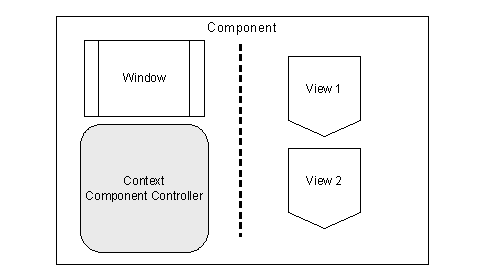
The newly created component was automatically equipped with a few elements, for example the component controller, an initial View MAIN, and the window were created. The context of the component controller will be visible for all views of this component, although it is currently empty.
1. Now double-click on the ComponentControllerobject of your new component. The Context tab page of the controller is automatically displayed, and you now have the option of defining a context. Make sure that the Workbench is in change mode.
2. Open the context menu of the Context root node and choose Create ® Nodes.
3. Enter a name for the new node (such as “NODE1“) and confirm the dialog without worrying about the other criteria.
The new node automatically appears below the root node, and you can now create an attribute for this node.
4. To do this, open the context menu of the new Context node and choose Create ® Attribute.
5. Enter a name for the attribute (such as “MYNAME”) and in the same window, specify the type of the attribute with STRING.
6. Confirm the dialog again without worrying about the other criteria. Save your work.
At the end of the first step, you should have created the two required views. In principle, you could already include the MAIN view in your design, but for ease of clarity in this procedure, the two required views are created additionally.
7. Open the context menu of your component and choose Create ® View.
8. Give the first view a name (such as “STARTVIEW”) and confirm the window. Alternatively, you can use the MAIN view created automatically when you created the component, and rename it.
As soon as you have saved your work, the Views node is inserted in the hierarchy of the object list below the component, and the STARTVIEW you have just created is stored there.
9. Open the context menu of the Views node and choose Create to add a second view.
10. Enter a name for the second view (such as “RESULTVIEW”) and confirm the creation process again. Then choose Save again.
Result
The component you have created has a component controller, in whose context the MYNAME attribute was stored. This attribute is visible for each view of this component and can be changed by all controllers of the component. The component now also contains two views. Continue with
Step 2: Structuring the First View